
Skip to content
mybox Help Center

Help sections

  • Getting Started
  • Account & Billing
  • Domains & DNS
  • Hosting & Servers
  • Email
  • Security & SSL
  • WordPress & CMS
  • Grow Online
mybox.com All services operational
/

Language

  • English
  • Română
  • mybox panel
  • Webmail
Start free
/
  • Getting Started
  • Account & Billing
  • Domains & DNS
  • Hosting & Servers
  • Email
  • Security & SSL
  • WordPress & CMS
  • Grow Online
  • Help Center
  • mybox.com
  • English
  • Română
All services operational Start free
  1. Help Center
  2. Account & Billing
  3. Service & Resource Management
How-to Account & Billing

Activation of AI bot blocking in mybox panel

Updated July 1, 2026 2 min read
On this page
  1. Check the current AI bot status
  2. Open AI bot management
  3. Choose which AI bots to block
  4. How the bot categories work

AI bot management in panel.mybox.com lets you control which AI crawlers can visit and index your website. This is useful when you want to limit unwanted crawl activity, reduce resource usage, or decide which AI services can access your content. The settings are managed per website from your mybox client panel.

Check the current AI bot status

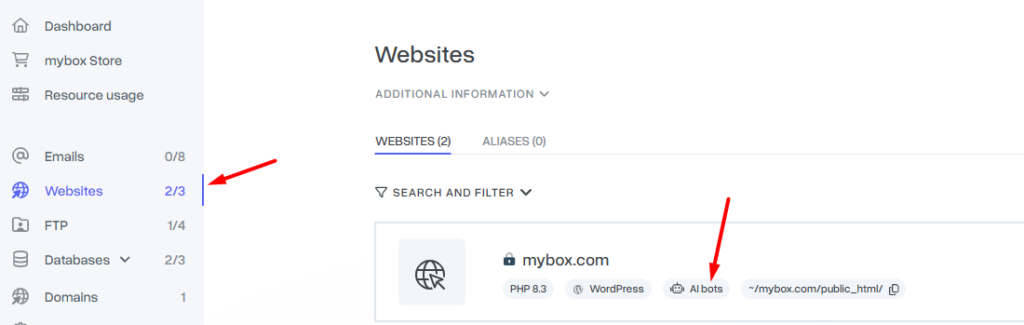
Sign in to panel.mybox.com and open Websites. For each website, you can see whether any AI bot blocks are currently active and how many AI bots are being blocked.a
Activation of AI bot blocking in mybox panel

Open AI bot management

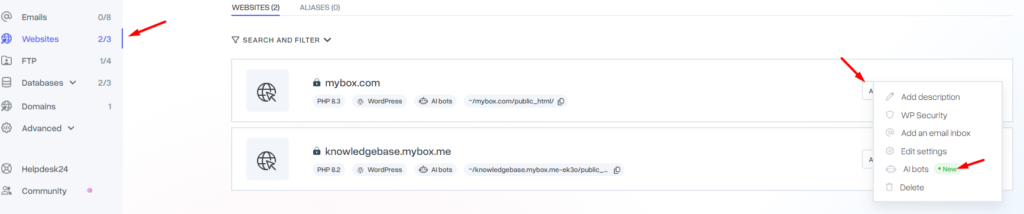
Find the website you want to manage, open the Actions menu, and select AI Bots. This opens the settings page for AI bot blocking for that website.
Activation of AI bot blocking in mybox panel – 2

Choose which AI bots to block

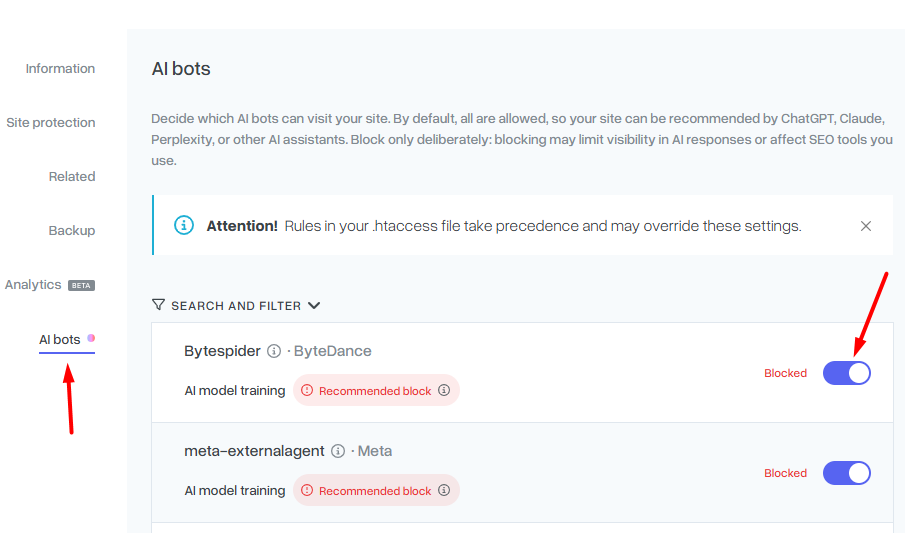
The management view shows a list of AI bots that can be blocked. To enable a block for a specific bot, use the toggle next to it. You can turn blocks on or off individually, so the settings can match the needs of each website.
Activation of AI bot blocking in mybox panel – 3

How the bot categories work

To make the list easier to use, the available AI bots are grouped into three categories. These categories help you decide which bots are usually worth blocking and which ones may still be useful, depending on how you want your site to appear in search tools or AI services.

  • Recommended to block – These bots may increase CPU usage and, as a result, increase scaling costs, while often providing little or no valuable traffic or AI visibility for your website. Blocking them does not affect your position in Google.
  • Your choice – These bots may be useful if you use a specific SEO tool or if you want your website to be present in AI search services such as ChatGPT Search or Perplexity.
  • Neutral – These bots usually do not affect your website’s visibility in search engines or in widely used AI assistants. Some of them may indirectly contribute to your domain’s presence in AI models.

These settings apply to the selected website. If you manage more than one site, review the AI bot settings for each one separately. After changing a toggle, the new block status should be visible in the panel for that website.

Was this article helpful?

Didn't find an answer?

Our support team is here for you 24/7 – write to us and we will help you sort it out.

Helpdesk 24/7 Open a ticket in the mybox panel mybox panel Log in and manage your services

On this page

  1. Check the current AI bot status
  2. Open AI bot management
  3. Choose which AI bots to block
  4. How the bot categories work

Related articles

All in Service & Resource Management
How-to Getting Started with mybox How to order a website to be transferred from another hosting At mybox, we provide comprehensive assistance with the transfer of websites and mailboxes from your current hosting provider. This migration process is… 2 min read How-to Getting Started with mybox Ordering a website and email migration to mybox The mybox team can migrate your website and email from your current hosting provider. To request a migration, you need to activate… 1 min read How-to Getting Started with mybox How to migrate a website to mybox Migrating a website to mybox means copying your files, database, and email content from your current hosting provider and pointing your domain… 2 min read
mybox

Modular web hosting – free out of the box, modular to grow.

Help sections

  • Getting Started
  • Account & Billing
  • Domains & DNS
  • Hosting & Servers
  • Email
  • Security & SSL
  • WordPress & CMS
  • Grow Online

mybox

  • mybox.com
  • mybox panel
  • Webmail
  • Helpdesk 24/7
© 2026 mybox 1,680 articles