
Add a new CRON job
On this page
A CRON job is a time-based task scheduler that allows you to automate repetitive actions on your server, such as backing up databases, sending scheduled emails, or clearing cache files.
Context
Automating tasks through the mybox panel ensures that essential maintenance or application logic runs at specific intervals without manual intervention. Because CRON jobs consume server resources, they are executed within “Profiles” that manage their impact on your environment’s performance.
Step-by-Step Configuration
To set up a new automated task:
- Access CRON Menu: Log in to the mybox panel, navigate to the Additional Services menu, and select CRON Tasks.
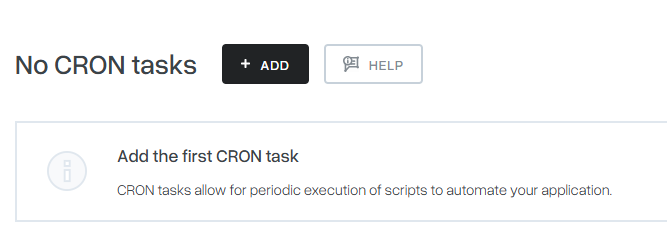
- Add Task: Click the Add button in the top menu to open the task configuration form.
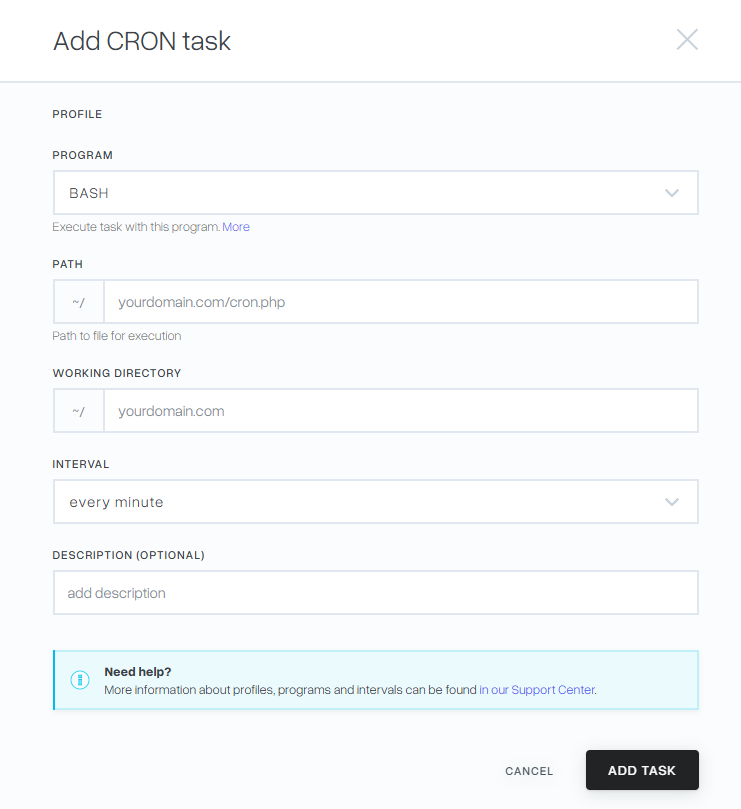
- Select a Profile: Choose an execution profile. This defines the CPU limits, RAM allocation, and maximum execution time for the task.
- Choose the Program: Select the application that will execute your task (e.g., PHP, Python, or a Bash shell script).
- Define the Path: * Local files: Enter the relative path starting from your home directory (e.g.,
~/scripts/backup.php).- Remote resources: Enter the full URL if the task involves retrieving a remote file.
- Set the Working Directory: This is the default folder the program will “stand in” while running. If your script tries to open
data.txtwithout a full path, the server will look for it here. - Select the Interval: Choose how often the task should run (e.g., every hour, daily, or at a custom crontab frequency).
Distinction: Local Path vs. Working Directory
- Path: The exact location of the script file you want to run.
- Working Directory: The “context” folder. If your script saves a file named
report.pdf, it will be placed inside this directory unless a different absolute path is specified in the code.
Practical Implications
- Resource Management: If a task exceeds the limits defined in its Profile, the system will terminate it to protect the stability of your other services.
- Relative Paths (
~/): Always remember that~/represents your account’s root directory. Using relative paths makes your scripts more portable if you move files between folders later. - Testing: It is a best practice to run your script manually via the browser or terminal first to ensure there are no syntax errors before scheduling it as a CRON job.
- Custom Intervals: If your plan allows for custom crontab formatting, you can define precise execution times (e.g.,
0 4 * * *to run every day at 4:00 AM).
Summary
CRON jobs are the engine behind a self-sustaining website. By correctly defining the program, the working directory, and the execution interval in the mybox panel, you can ensure your background processes run reliably and efficiently.
Didn't find an answer?
Our support team is here for you 24/7 – write to us and we will help you sort it out.