
Skip to content
mybox Help Center

Help sections

  • Getting Started
  • Account & Billing
  • Domains & DNS
  • Hosting & Servers
  • Email
  • Security & SSL
  • WordPress & CMS
  • Grow Online
mybox.com All services operational
/

Language

  • English
  • Română
  • mybox panel
  • Webmail
Start free
/
  • Getting Started
  • Account & Billing
  • Domains & DNS
  • Hosting & Servers
  • Email
  • Security & SSL
  • WordPress & CMS
  • Grow Online
  • Help Center
  • mybox.com
  • English
  • Română
All services operational Start free
  1. Help Center
  2. Getting Started
  3. First Email & Domain Setup
How-to Getting Started

Domain configuration to use Google Workspace / Google Apps / Google Suite (GSuite) email boxes

Updated February 5, 2026 1 min read

If you want to use the e-mail boxes you have in Google Workspace (formerly known as Google Apps or Google Suite) on a parked or purchased mybox domain, you should modify a dozen or so entries in the domain’s DNS zone. You can do this manually according to the guidelines provided in the Google Help articles, but we provide you with automatic zone modification so that your mail is routed correctly and works with Google Workspace.

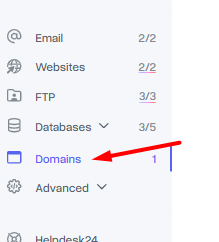
In the first step, log in to the mybox panel, and then go to the “Domains” section.
Domain configuration to use Google Workspace / Google Apps / Google Suite (GSuite) email boxes

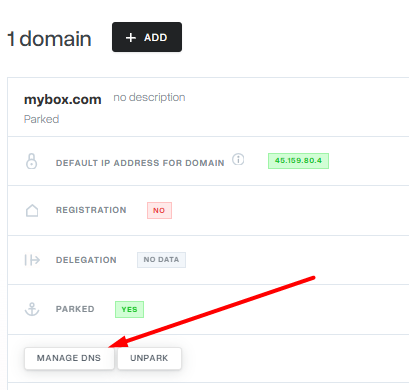
Then select the domain by clicking on its name and go to the tab: “Parked”, where you will find a button that allows you to open the domain DNS zone management page.
Domain configuration to use Google Workspace / Google Apps / Google Suite (GSuite) email boxes – 2

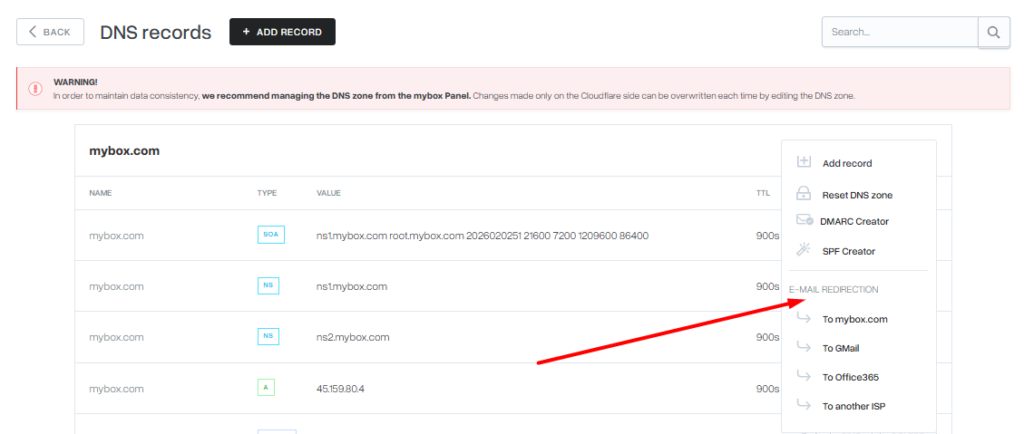
The final step is to select the action button (in the upper right corner) and select “mail forwarding to Gmail”.
Domain configuration to use Google Workspace / Google Apps / Google Suite (GSuite) email boxes – 3

Remember that every change at the level of domain settings, i.e. DNS servers or DNS zones,
requires the so-called propagation, i.e. the broadcasting of changes on the Internet.
This process is independent of us and can take up to 24 hours.

When editing manually, you must enter the values of the lowercase entries.
In the case of manually entering the values of e.g. destination addresses of hosts from capital letters, the mybox panel will not accept such a change.

Was this article helpful?

Didn't find an answer?

Our support team is here for you 24/7 – write to us and we will help you sort it out.

Helpdesk 24/7 Open a ticket in the mybox panel mybox panel Log in and manage your services

Related articles

All in First Email & Domain Setup
How-to First Email & Domain Setup How to add a new mailbox Email accounts in mybox are tied to a domain in your account. You can create a mailbox on your own domain or… 1 min read How-to First Email & Domain Setup Configuring Thunderbird 1. When you want to add another email account to Mozilla Thunderbird, click on any account, then a tab will appear where… 2 min read How-to First Email & Domain Setup How to configure the email client An email client is an application used to send and receive email — such as Outlook, Thunderbird, or Apple Mail. To connect… 1 min read
mybox

Modular web hosting – free out of the box, modular to grow.

Help sections

  • Getting Started
  • Account & Billing
  • Domains & DNS
  • Hosting & Servers
  • Email
  • Security & SSL
  • WordPress & CMS
  • Grow Online

mybox

  • mybox.com
  • mybox panel
  • Webmail
  • Helpdesk 24/7
© 2026 mybox 1,680 articles