
How can I revert to an older version of a plugin in WordPress if it causes problems after an update?
Sometimes after updating a plugin in the “WordPress” CMS to a newer version, it turns out that it causes problems, e.g. the website does not work stably. If you suspect that an update is the reason for this and you want to roll back an older version of the plugin, you can use the WP Rollback plugin.
1. Log in to the “WordPress” backend and go to the “Plugins” tab, then select the “Add New” option.
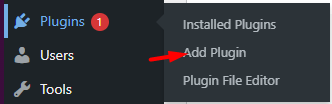
2. In the search box on the right, type: “WP Rollback”. After a while, you will see the suggested add-ons corresponding to this query in the results. Find the plugin: “WP Rollback” and click the “Install” button.

3. Once the installation is complete, enable the plugin by clicking the “Enable” button.
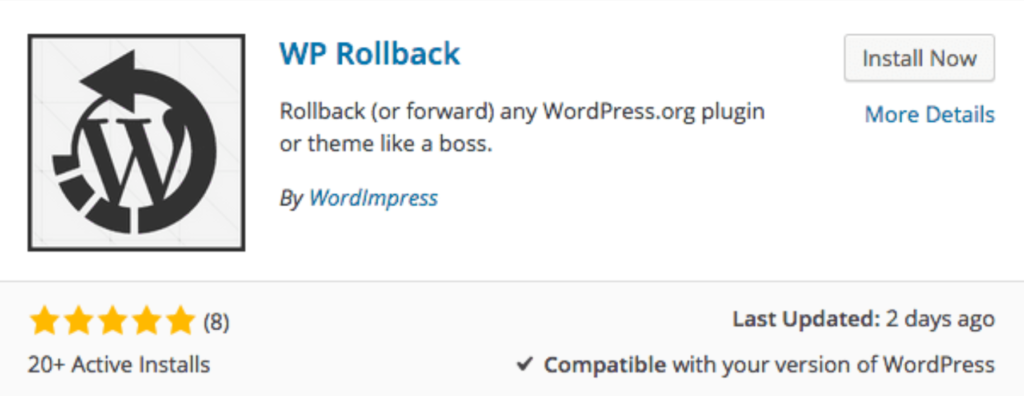
4. Once installed, go to the installed plugins view. For each of them, you will find a new Rollback link
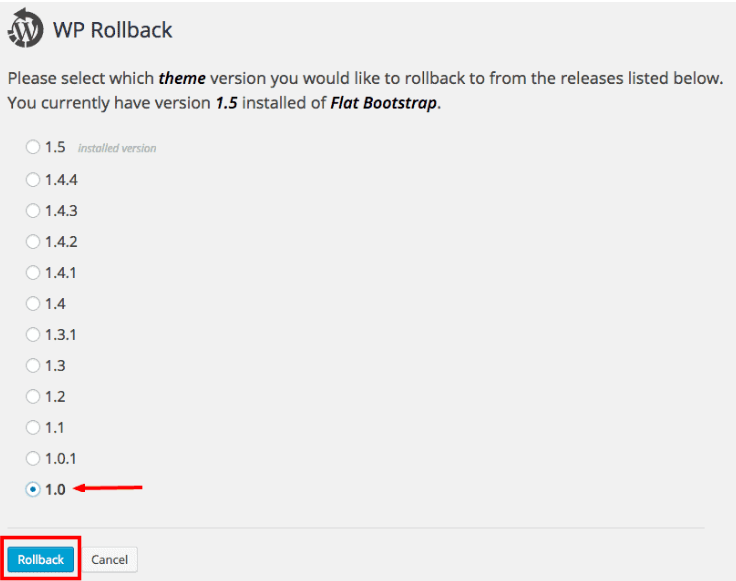
5. In our example, we choose the Flat Bootstrap theme. After clicking on the Rollback link, a list of archived versions made available by the plugin author will appear. It is worth noting that the presence of these versions depends solely on the author of the plugin.
Once you’ve selected a version, select it and click the Rollback button at the bottom of the page.
6. A pop-up window will appear where you need to confirm that you want to perform the restore by clicking the Rollback button again.
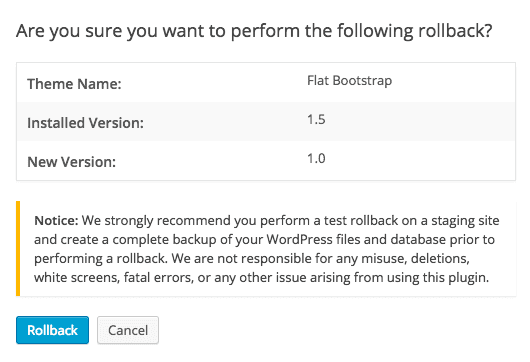
7. That’s all. The plugin should be restored.
Didn't find an answer?
Our support team is here for you 24/7 – write to us and we will help you sort it out.