
Skip to content
mybox Help Center

Help sections

  • Getting Started
  • Account & Billing
  • Domains & DNS
  • Hosting & Servers
  • Email
  • Security & SSL
  • WordPress & CMS
  • Grow Online
mybox.com All services operational
/

Language

  • English
  • Română
  • mybox panel
  • Webmail
Start free
/
  • Getting Started
  • Account & Billing
  • Domains & DNS
  • Hosting & Servers
  • Email
  • Security & SSL
  • WordPress & CMS
  • Grow Online
  • Help Center
  • mybox.com
  • English
  • Română
All services operational Start free
  1. Help Center
  2. Account & Billing
  3. Service & Resource Management
How-to Account & Billing

How do I activate my SSH account?

Updated June 2, 2026 1 min read
On this page
  1. Context
  2. Steps to activate SSH

Context

SSH access allows you to connect securely to your hosting environment and manage files, services, or deployments through the command line. In mybox, SSH can be activated directly from the control panel.

Steps to activate SSH

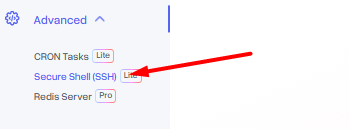
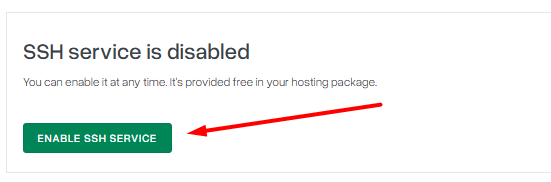
1. Log in to the mybox panel, then go to the “Advanced” tab and select “Secure Shell (SSH)” and click the green “Activate SSH Service” button.
How do I activate my SSH account?
How do I activate my SSH account? – 2

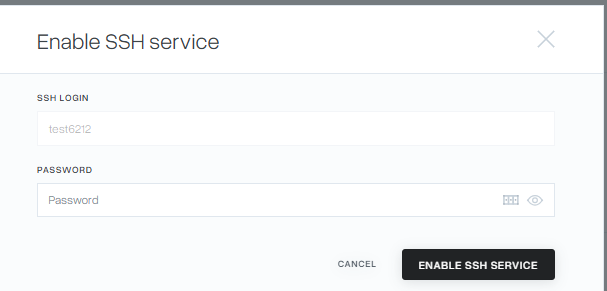
2. In the next step, you just need to set a password and click on “Activate SSH Service” to enable access to your SSH account.
How do I activate my SSH account? – 3

3. You will be informed about the activation of your account and you will receive the necessary login details. You have the option to deactivate your account and change your password.
The SSH password during activation is synchronized with your the mybox panel password.
However, you need to keep in mind that changing the password to the mybox panel does not change the SSH password and once this option is activated, you can change it by specifying another access password active exclusively for SSH, which we recommend you do right away to avoid danger in case of hacking.

Was this article helpful?

Didn't find an answer?

Our support team is here for you 24/7 – write to us and we will help you sort it out.

Helpdesk 24/7 Open a ticket in the mybox panel mybox panel Log in and manage your services

On this page

  1. Context
  2. Steps to activate SSH

Related articles

All in Service & Resource Management
How-to Getting Started with mybox How to order a website to be transferred from another hosting At mybox, we provide comprehensive assistance with the transfer of websites and mailboxes from your current hosting provider. This migration process is… 2 min read How-to Getting Started with mybox Ordering a website and email migration to mybox The mybox team can migrate your website and email from your current hosting provider. To request a migration, you need to activate… 1 min read How-to Getting Started with mybox How to migrate a website to mybox Migrating a website to mybox means copying your files, database, and email content from your current hosting provider and pointing your domain… 2 min read
mybox

Modular web hosting – free out of the box, modular to grow.

Help sections

  • Getting Started
  • Account & Billing
  • Domains & DNS
  • Hosting & Servers
  • Email
  • Security & SSL
  • WordPress & CMS
  • Grow Online

mybox

  • mybox.com
  • mybox panel
  • Webmail
  • Helpdesk 24/7
© 2026 mybox 1,680 articles