
How do I create a user in a WordPress CMS?
On this page
If you want to grant another person access to your WordPress website, for example a content editor, developer, marketing agency, or a temporary account for troubleshooting purposes, you can create an additional user directly from the WordPress administration panel. WordPress allows you to assign different permission levels depending on the user’s role.
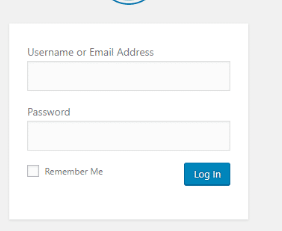
Log In to the WordPress Dashboard
- Open your WordPress administration panel.
By default, the login page is available at:
https://yourdomain.com/wp-adminLog in using an account with administrator privileges.
Add a New User
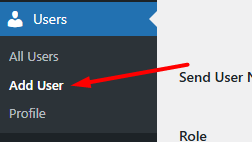
- In the left-hand menu, navigate to:
Users → Add New- Fill in the required fields:
- Username
- Email Address
You may also optionally provide:
- First Name
- Last Name
- Website URL
WordPress can automatically generate a secure password, or you can create your own.
Choose a User Role
Before creating the account, select the appropriate role from the Role dropdown menu.
Common WordPress roles include:
Administrator
Has full access to all website features, settings, themes, plugins, and user management.
Editor
Can create, edit, publish, and manage content created by all users.
Author
Can create, edit, and publish their own posts.
Contributor
Can create and edit their own posts but cannot publish them.
Subscriber
Can manage only their own profile and account settings.
Important
Only grant Administrator access to trusted users. This role provides complete control over the website.
Send Login Details to the User
If desired, enable the option to send an email notification to the new user.
The user will receive account information and can log in using the credentials provided.
Create the Account
After completing the form:
- Click:
Add New UserThe account will be created immediately and will appear in the list of WordPress users.
Editing or Removing Users
You can manage existing accounts at any time by navigating to:
UsersFrom there, you can:
- Change user roles
- Reset passwords
- Update profile information
- Remove accounts that are no longer needed
Creating a User for Technical Support
If you are creating an account for troubleshooting or website verification purposes, it is recommended to assign the Administrator role so that all necessary settings and functionality can be reviewed without restrictions.
Summary
To create a new WordPress user:
- Log in to the WordPress dashboard.
- Go to Users → Add New.
- Enter the user’s information.
- Select the appropriate role.
- Click Add New User.
WordPress user roles allow you to safely grant access while controlling what each user can view or modify on your website.
Didn't find an answer?
Our support team is here for you 24/7 – write to us and we will help you sort it out.