
Skip to content
mybox Help Center

Help sections

  • Getting Started
  • Account & Billing
  • Domains & DNS
  • Hosting & Servers
  • Email
  • Security & SSL
  • WordPress & CMS
  • Grow Online
mybox.com All services operational
/

Language

  • English
  • Română
  • mybox panel
  • Webmail
Start free
/
  • Getting Started
  • Account & Billing
  • Domains & DNS
  • Hosting & Servers
  • Email
  • Security & SSL
  • WordPress & CMS
  • Grow Online
  • Help Center
  • mybox.com
  • English
  • Română
All services operational Start free
  1. Help Center
  2. Email
  3. WebMail mail.mybox.com
How-to Email

How do I forward deletion messages using filters in mail.mybox.com?

Updated June 2, 2026 1 min read
On this page
  1. How to create a forwarding filter with deletion
  2. 1. Open webmail settings
  3. 2. Open filters
  4. 3. Create a new filter
  5. 4. Define the rule
  6. 5. Set forwarding action
  7. 6. Add deletion action
  8. 7. Save the filter
  9. Practical implications
  10. Summary

In mybox webmail, you can create filters that automatically forward incoming emails to another mailbox and remove them from the original inbox afterward. This is useful when you want to centralize email processing in a different account without keeping duplicates.

This configuration is done directly in the webmail interface.
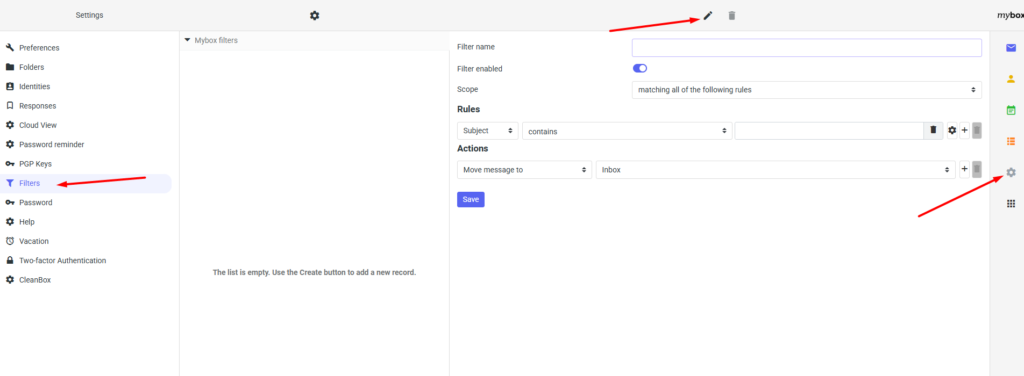
How do I forward deletion messages using filters in mail.mybox.com?

How to create a forwarding filter with deletion

1. Open webmail settings

Log in to your webmail account and go to:

Settings

2. Open filters

In the settings menu, select:

Filters

3. Create a new filter

Click:

Add new filter

Then enter a clear and descriptive name for the filter.

4. Define the rule

Set the condition for incoming messages.

For example:
If the message is sent to a specific mailbox (e.g. your address), apply the rule.

5. Set forwarding action

Choose the action:

Forward message to

Then enter the destination email address where messages should be delivered.

You can forward to:

  • another internal mailbox
  • an external email address

6. Add deletion action

Add another condition or action using the plus option.

Select:
Delete message after forwarding

This ensures the message is removed from the original mailbox once it has been successfully forwarded.

7. Save the filter

Confirm and save the configuration.

The filter becomes active immediately.

Practical implications

  • messages are forwarded automatically in real time
  • original mailbox does not store copies of forwarded emails
  • filters can be customized per sender, recipient, or subject
  • useful for routing mail to centralized systems or external tools

Summary

In mybox webmail, forwarding with deletion is configured through filters in the settings menu. By combining a forwarding rule with a delete action, incoming messages can be automatically redirected and removed from the original mailbox.

Was this article helpful?

Didn't find an answer?

Our support team is here for you 24/7 – write to us and we will help you sort it out.

Helpdesk 24/7 Open a ticket in the mybox panel mybox panel Log in and manage your services

On this page

  1. How to create a forwarding filter with deletion
  2. 1. Open webmail settings
  3. 2. Open filters
  4. 3. Create a new filter
  5. 4. Define the rule
  6. 5. Set forwarding action
  7. 6. Add deletion action
  8. 7. Save the filter
  9. Practical implications
  10. Summary

Related articles

All in WebMail mail.mybox.com
How-to WebMail mail.mybox.com How do I set up two-step verification in Webmail? Security is a priority today, and two-step verification, which requires not only knowing and providing a password, but also a one-time code,… 2 min read How-to WebMail mail.mybox.com How to change your email password in WebMail The mailbox password can be changed directly in webmail at mail.mybox.com — without accessing the mybox panel. This is useful when the… 1 min read Explainer WebMail mail.mybox.com What Is Webmail? Webmail is a web-based interface that allows users to access, send, receive, and manage email messages directly through a web browser without… 2 min read
mybox

Modular web hosting – free out of the box, modular to grow.

Help sections

  • Getting Started
  • Account & Billing
  • Domains & DNS
  • Hosting & Servers
  • Email
  • Security & SSL
  • WordPress & CMS
  • Grow Online

mybox

  • mybox.com
  • mybox panel
  • Webmail
  • Helpdesk 24/7
© 2026 mybox 1,680 articles