Skip to content
mybox Help Center

Help sections

  • Getting Started
  • Account & Billing
  • Domains & DNS
  • Hosting & Servers
  • Email
  • Security & SSL
  • WordPress & CMS
  • Grow Online
mybox.com All services operational
/

Language

  • English
  • Română
  • mybox panel
  • Webmail
Start free
/
  • Getting Started
  • Account & Billing
  • Domains & DNS
  • Hosting & Servers
  • Email
  • Security & SSL
  • WordPress & CMS
  • Grow Online
  • Help Center
  • mybox.com
  • English
  • Română
All services operational Start free
  1. Help Center
  2. Email
  3. Mailbox & Webmail Management
How-to Email

How do I import mailboxes?

Updated October 20, 2026 1 min read
On this page
  1. Method 1: Import via the mybox panel
  2. Method 2: Import using IMAPCopy
  3. If the import fails

The mybox panel includes a built-in import tool that pulls messages from an external email account directly into a mybox mailbox. This is useful when migrating email from a previous provider.

Before starting, make sure the destination mailbox already exists in mybox. If not, see If not, see How to add a new mailbox.

Method 1: Import via the mybox panel

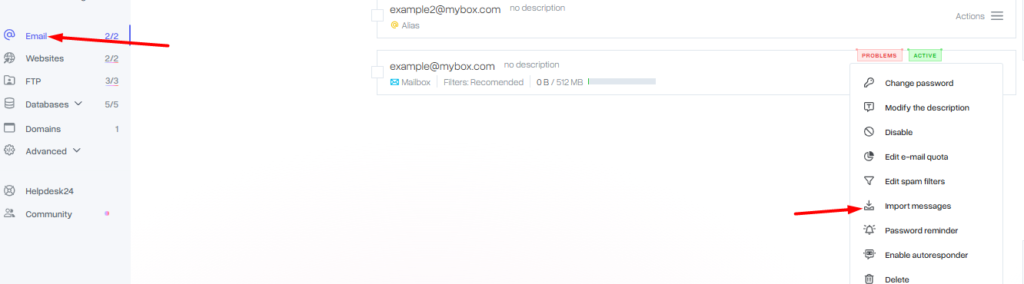
1. Log in to the mybox panel and go to the E-mail tab.

2. Find the destination mailbox and click Actions.

3. Select Import Messages from the dropdown.
How do I import mailboxes?

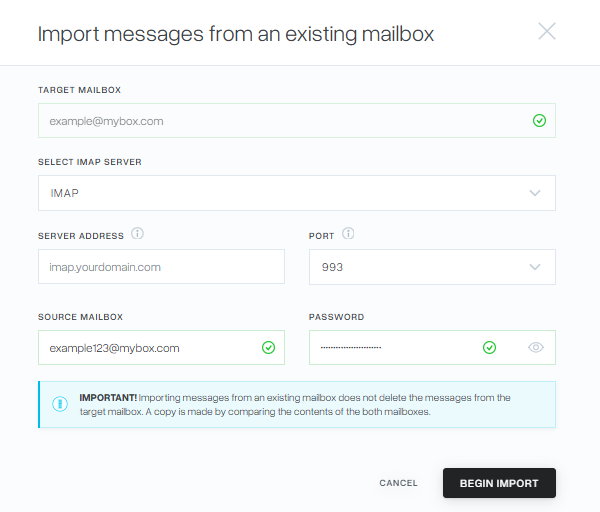
4. In the form that appears, enter:

Field What to enter
Mail server Incoming mail server (IMAP) of your previous provider
Mailbox name Full email address at the previous provider
Password Password for that email account
How do I import mailboxes? – 2

5. Confirm to start the import.

A confirmation email will arrive in the destination mailbox once the import is complete.

Tip
Import can also be triggered during mailbox creation — look for the Import Messages option in the new mailbox form.

Method 2: Import using IMAPCopy

If your previous provider does not support direct IMAP access or the panel import does not work, use IMAPCopy — a tool that copies messages between two IMAP accounts.


If the import fails

Check that:

  • The mail server address is correct (ask your previous provider if unsure)
  • IMAP access is enabled on the source account
  • The password is current

If the issue persists, contact support via Helpdesk 24 in the mybox panel.

Was this article helpful?

Didn't find an answer?

Our support team is here for you 24/7 – write to us and we will help you sort it out.

Helpdesk 24/7 Open a ticket in the mybox panel mybox panel Log in and manage your services

On this page

  1. Method 1: Import via the mybox panel
  2. Method 2: Import using IMAPCopy
  3. If the import fails

Related articles

All in Mailbox & Webmail Management
How-to First Email & Domain Setup How to add a new mailbox Email accounts in mybox are tied to a domain in your account. You can create a mailbox on your own domain or… 1 min read How-to WebMail mail.mybox.com How to change your email password in WebMail The mailbox password can be changed directly in webmail at mail.mybox.com — without accessing the mybox panel. This is useful when the… 1 min read Problem Mailbox & Webmail Management “Mailbox Full” Errors in Third-Party Email Clients Explained A “mailbox full” message does not always mean that the same storage limit has been reached. It may refer to the server… 4 min read
mybox

Modular web hosting – free out of the box, modular to grow.

Help sections

  • Getting Started
  • Account & Billing
  • Domains & DNS
  • Hosting & Servers
  • Email
  • Security & SSL
  • WordPress & CMS
  • Grow Online

mybox

  • mybox.com
  • mybox panel
  • Webmail
  • Helpdesk 24/7
© 2026 mybox 1,680 articles