
How do I list FTP accounts I’ve created?
On this page
How to view your FTP accounts
The mybox panel provides a centralized view of all FTP users associated with your account. This section allows you to verify usernames, check directory paths, and retrieve the technical details needed to connect your FTP client to the server.
Context
When managing multiple websites or collaborating with developers, it is important to know which FTP accounts are active and exactly which folders they can access. All administrative data for these accounts—excluding the password—is available within the FTP module.
Accessing the FTP list
To view your created FTP users:
- Log in to the mybox panel: Navigate to your hosting dashboard.
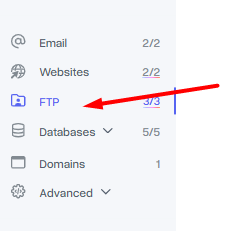
- Open the FTP section: Select FTP from the main navigation menu. After a brief loading period, the system will display the full list of your FTP accounts.
Retrieving account details
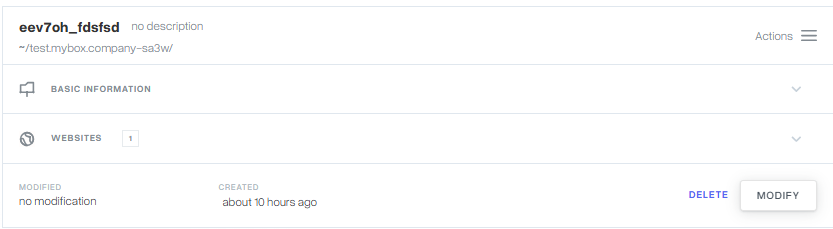
To check the specific settings for any individual account, click on the account name to expand its detailed information.
General Information
Selecting this tab displays the exact login (username) for the account and the directory path it is assigned to. This confirms which part of the server the user can see upon logging in.
Basic Information
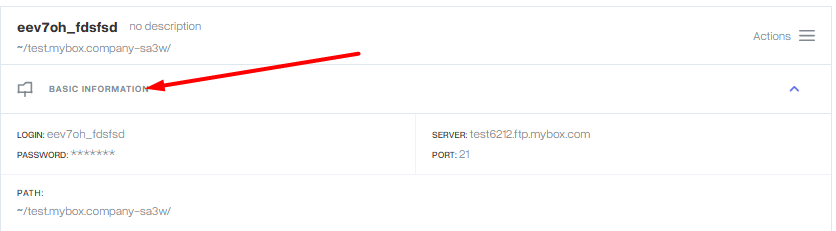
If you click on Basic Information, the panel displays all the necessary connection details—such as the hostname and port—required to set up your FTP software.
Distinction: Account Login vs. Directory Path
- Account Login: The specific username (including its unique prefix) used to sign in via your FTP client.
- Directory Path: The designated folder on the server where the user “lands” after connecting. This is often the root directory or a specific website folder.
Practical Implications
- Security: For your protection, the password is not stored in plain text and will not be displayed here. If a password is forgotten, it must be reset using the “Change Password” option in the account settings.
- Connection Data: The information found in Basic Information is what you will copy and paste into programs like FileZilla or WinSCP.
- Account Cleanup: If you find accounts in this list that are no longer necessary, it is a security best practice to delete them to reduce potential access points to your files.
Summary
The FTP module in the mybox panel acts as your directory for file access management. By reviewing the General and Basic Information tabs, you can quickly gather the credentials needed to maintain your website’s file structure.
Didn't find an answer?
Our support team is here for you 24/7 – write to us and we will help you sort it out.