
Skip to content
mybox Help Center

Help sections

  • Getting Started
  • Account & Billing
  • Domains & DNS
  • Hosting & Servers
  • Email
  • Security & SSL
  • WordPress & CMS
  • Grow Online
mybox.com All services operational
/

Language

  • English
  • Română
  • mybox panel
  • Webmail
Start free
/
  • Getting Started
  • Account & Billing
  • Domains & DNS
  • Hosting & Servers
  • Email
  • Security & SSL
  • WordPress & CMS
  • Grow Online
  • Help Center
  • mybox.com
  • English
  • Română
All services operational Start free
  1. Help Center
  2. Email
  3. Email Client Configuration
How-to Email

How to move a mailbox from gmail.com

Updated February 24, 2026 1 min read
On this page
  1. Self-migration in three steps
  2. Need help with email migration?

This article explains how to transfer messages from a Gmail account to a mailbox hosted on mybox. The import uses IMAP — a standard protocol that allows mybox to connect to your Gmail account and copy messages directly into your new mailbox.

Before you start, make sure you have already created a mailbox in mybox.

Self-migration in three steps

You can use a dedicated option that allows you to transfer messages from your current operator to mailboxes created in mybox.com directly from the myBox panel.

Step 1 — Go to the Email tab in your myBox panel.

Step 2 — Open Import messages Find the mailbox you want to import messages into, click Actions, and select Import messages from the list.
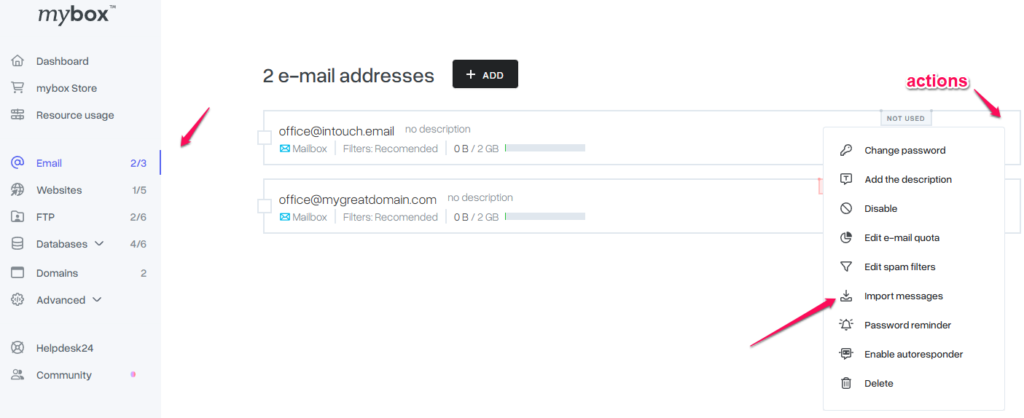
How to move a mailbox from gmail.com

Step 3 — Enter your Gmail details In the form that appears, enter the following:

  • Server address: imap.gmail.com
  • Source mailbox: your Gmail address (e.g. yourname@gmail.com)
  • Password: the password for the Gmail account you are transferring from

Click Begin import.
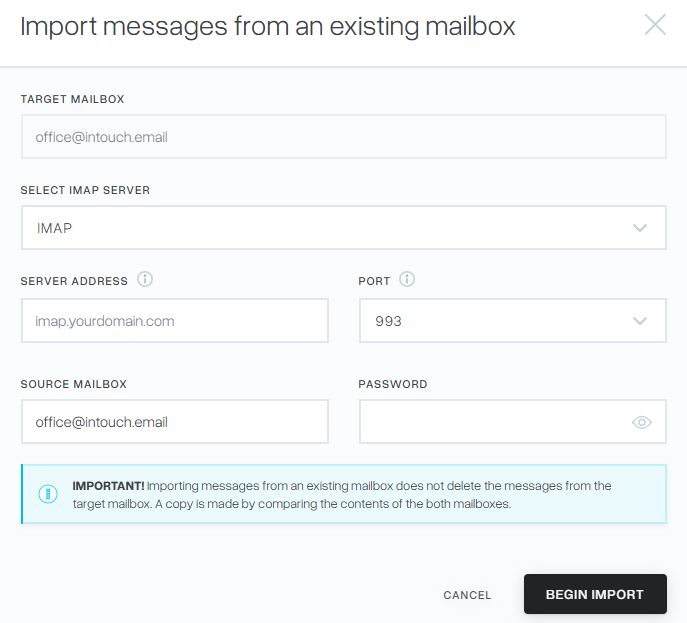
How to move a mailbox from gmail.com – 2

What to expect: The import runs in the background. Once it’s complete, you’ll receive a confirmation notification in your destination mailbox. Depending on the number of messages, this may take a few minutes.You can also trigger the import directly when creating a new mailbox.

Need help with email migration?

If you’d prefer to have your email boxes migrated by the mybox team, you can activate the Website Migration add-on from the mybox Store. The add-on covers email migration alongside your website transfer.Learn more about website and email migration →

Was this article helpful?

Didn't find an answer?

Our support team is here for you 24/7 – write to us and we will help you sort it out.

Helpdesk 24/7 Open a ticket in the mybox panel mybox panel Log in and manage your services

On this page

  1. Self-migration in three steps
  2. Need help with email migration?

Related articles

All in Email Client Configuration
How-to Email Client Configuration How to Configure mybox Email in the New Outlook for Windows You can connect a mybox email account to the new Microsoft Outlook for Windows using IMAP, allowing you to access messages from… 4 min read How-to Email Client Configuration How to Set Up Custom Domain Email in Thunderbird on Windows To set up email for a custom domain in Thunderbird on Windows, add the mailbox using manual IMAP settings for incoming mail… 4 min read Explainer Email Client Configuration Gmail, Outlook, Apple Mail, or Thunderbird: Which Email Client Is Best for a Custom Domain? The best email client for a custom-domain email address depends on your device, mailbox provider, and supported connection method. The key requirement… 4 min read
mybox

Modular web hosting – free out of the box, modular to grow.

Help sections

  • Getting Started
  • Account & Billing
  • Domains & DNS
  • Hosting & Servers
  • Email
  • Security & SSL
  • WordPress & CMS
  • Grow Online

mybox

  • mybox.com
  • mybox panel
  • Webmail
  • Helpdesk 24/7
© 2026 mybox 1,680 articles