
Skip to content
mybox Help Center

Help sections

  • Getting Started
  • Account & Billing
  • Domains & DNS
  • Hosting & Servers
  • Email
  • Security & SSL
  • WordPress & CMS
  • Grow Online
mybox.com All services operational
/

Language

  • English
  • Română
  • mybox panel
  • Webmail
Start free
/
  • Getting Started
  • Account & Billing
  • Domains & DNS
  • Hosting & Servers
  • Email
  • Security & SSL
  • WordPress & CMS
  • Grow Online
  • Help Center
  • mybox.com
  • English
  • Română
All services operational Start free
  1. Help Center
  2. Account & Billing
  3. Account & Login Management
How-to Account & Billing

How do I set up 2FA in the mybox panel?

Updated October 20, 2026 1 min read
On this page
  1. Before you start
  2. How to enable 2FA
  3. What to expect after activation

Two-factor authentication (2FA) adds a second verification step when logging in to the mybox panel. After entering your password, the panel asks for a one-time code generated by an app on your phone. This makes your account significantly harder to access without your physical device.

Before you start

Install an authenticator app on your phone. The most common options are:

  • Google Authenticator — iOS / Android
  • Microsoft Authenticator
  • Authy

How to enable 2FA

1. Log in to the mybox panel.

2. Click your name in the top-right corner and select Settings.
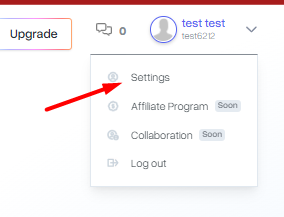
How do I set up 2FA in the mybox panel?

3. Go to the Account Verification (2FA) tab. The current status of two-st3ep verification is shown here.

4. Click Enable
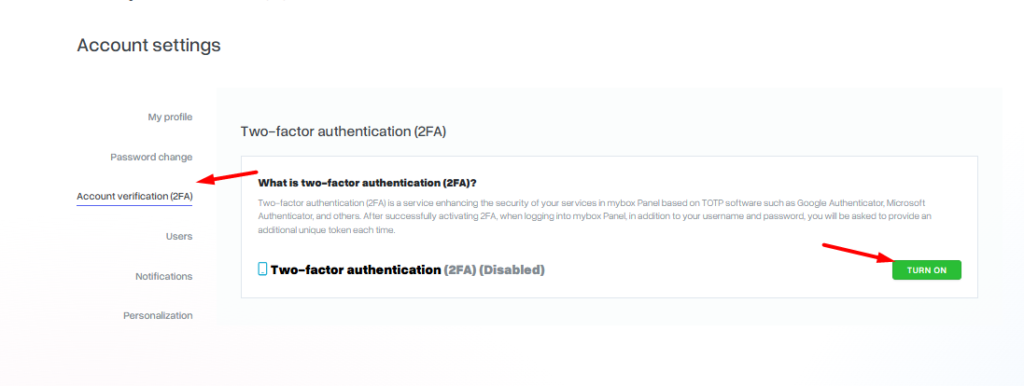
How do I set up 2FA in the mybox panel? – 2

5. For security, enter your panel password and click Authorize.
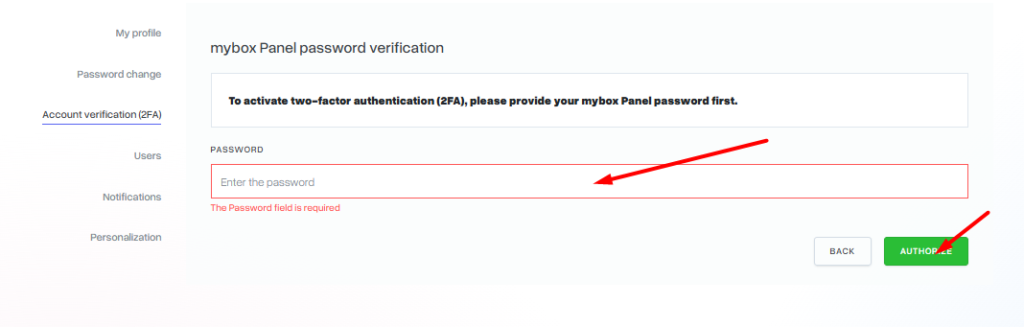
How do I set up 2FA in the mybox panel? – 3

6. A QR code will appear on the next page. Scan it with your authenticator app.
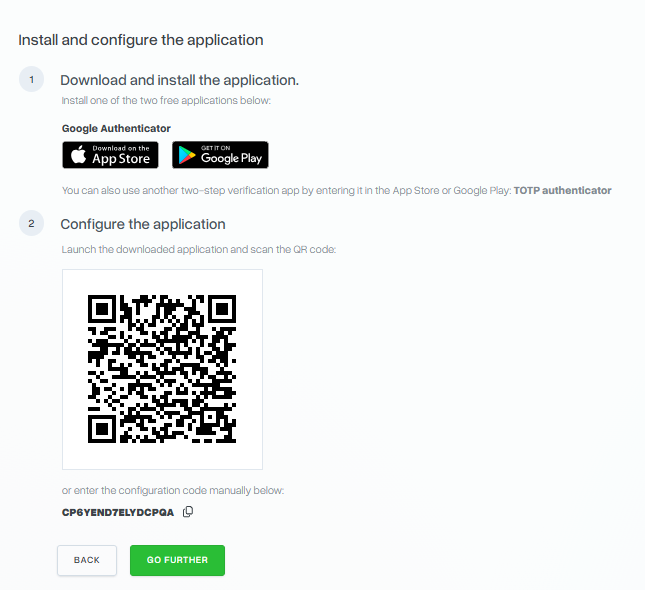
How do I set up 2FA in the mybox panel? – 4

7. Your app will display a 6-digit code that refreshes every 30 seconds. Enter it in the field provided.

8. Optionally, check Add this device to trusted list if you log in frequently from the same browser. Trusted devices skip the 2FA step on future logins.

9. Click Activate 2FA to complete the setup.

What to expect after activation

Every time you log in from a new or untrusted device, the panel will ask for a 6-digit code after your password. Open your authenticator app, enter the current code, and access is granted.

If you lose access to your authenticator app, contact support to verify your identity and reset 2FA.

Was this article helpful?

Didn't find an answer?

Our support team is here for you 24/7 – write to us and we will help you sort it out.

Helpdesk 24/7 Open a ticket in the mybox panel mybox panel Log in and manage your services

On this page

  1. Before you start
  2. How to enable 2FA
  3. What to expect after activation

Related articles

All in Account & Login Management
How-to Getting Started with mybox How do I log in to the mybox panel? The mybox panel is the central hub for managing your hosting account — websites, databases, email, and add-ons. Access it at panel.mybox.com. 1 min read Explainer Choosing the Right Service mybox Panel vs cPanel When choosing a hosting service, the control panel is one of the most important parts of the experience. This is where users… 11 min read Explainer Account & Login Management What is the difference between a domain owner and a person paying for a server service in mybox.com? A domain registrant and a hosting account owner are two separate roles. They can be the same person or organization, but they… 2 min read
mybox

Modular web hosting – free out of the box, modular to grow.

Help sections

  • Getting Started
  • Account & Billing
  • Domains & DNS
  • Hosting & Servers
  • Email
  • Security & SSL
  • WordPress & CMS
  • Grow Online

mybox

  • mybox.com
  • mybox panel
  • Webmail
  • Helpdesk 24/7
© 2026 mybox 1,680 articles