
How to Add a Recurring CRON Job to Terminate Specific Processes
On this page
If a website script generates excessive server load or contains inefficient code, you can temporarily mitigate the issue by creating a CRON job that automatically terminates a specific process at regular intervals. This should only be used as a temporary workaround while the root cause is being investigated and fixed.
Create the Script
First, connect to your hosting account via SSH.
Create a new script file:
touch process-admin-ajax.shOpen the file for editing using your preferred text editor:
mcedit process-admin-ajax.shAdd the following content:
#!/bin/bash
pkill -f admin-ajax.php
echo done
Save the file and exit the editor.
Make the script executable:
chmod 755 process-admin-ajax.shHow the Script Works
pkill -f admin-ajax.phpsearches for running processes containingadmin-ajax.phpin their command line and terminates them.echo doneoutputs a confirmation message when the script runs.
Add the CRON Job
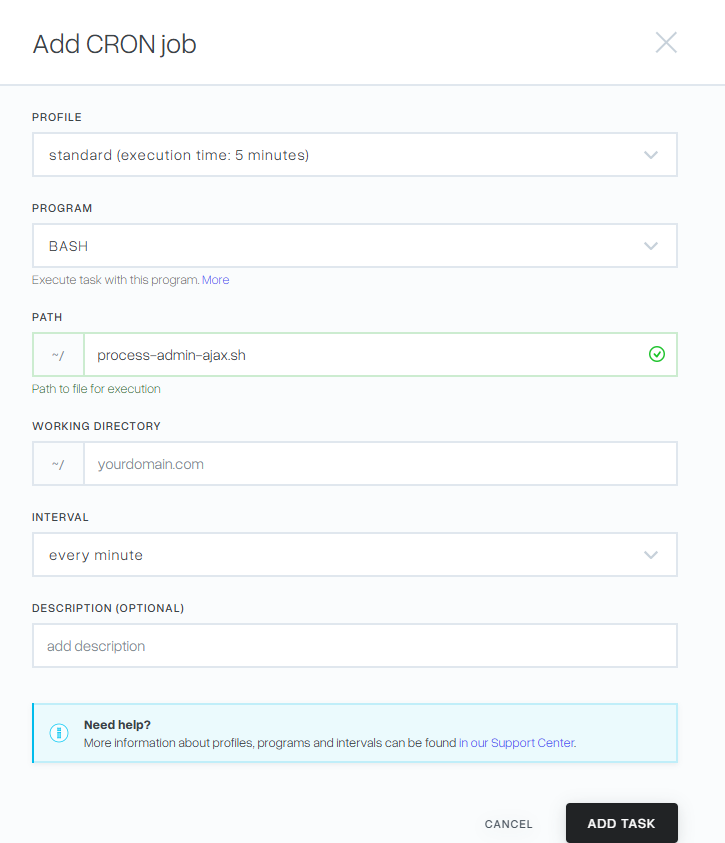
- Log in to the hosting control panel.
- Navigate to Additional Services → CRON Jobs.
- Click Add to create a new scheduled task.
- Select BASH as the task type.
- Enter the full path to the script you created.
- Configure the execution interval according to your requirements.
- Click Add Task to save the configuration.
Important notes
Automatically terminating processes can interrupt website functionality and should only be used for troubleshooting or temporary load reduction.
Investigate the root cause of the excessive resource usage and correct the underlying code whenever possible.
Test the script carefully before scheduling it to run automatically in a production environment.
Didn't find an answer?
Our support team is here for you 24/7 – write to us and we will help you sort it out.