
How to change or add a new theme on a WordPress-based website
On this page
WordPress themes control the appearance and layout of your website. If you want to refresh your site’s design, test a new layout, or install a premium theme, WordPress makes it easy to add and switch between themes.
How to add a new theme
Once you’ve logged in to the “WordPress” backend, go to “Appearance” and there “Themes”. At the top of the page, you will find the “Add” button.
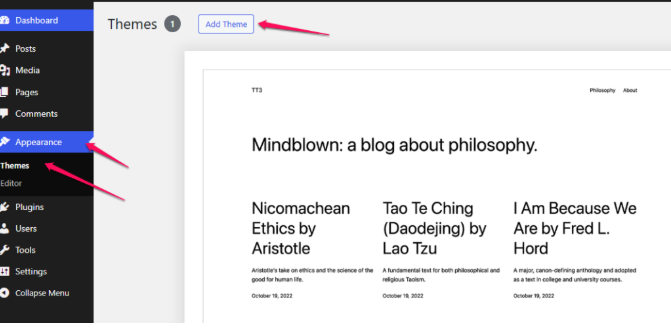
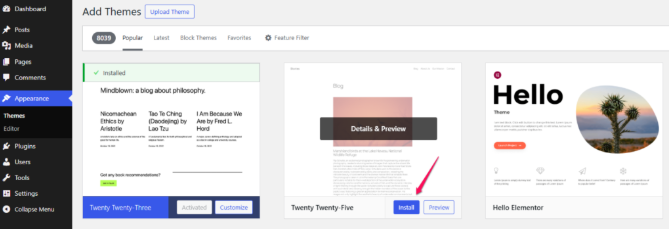
Once the page loads, “WordPress” will present you both the themes you have already installed, but also here you will find a catalog of thousands of free themes that you can install. To do this, you just have to click on the “Install” button that appears after hovering your mouse over the theme of your choice.
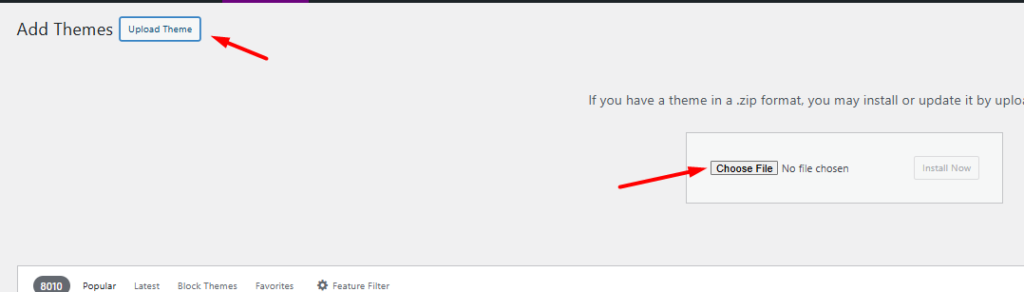
Another method is to upload a theme. This is usually the case if you purchased the theme and the theme author provided you with an .zip file containing the theme files. Once on the page described above, click on the “Upload theme to server” button and in the field that appears, select the .zip file containing the template from your disk, then click “Install”.
How do I run a theme that is already installed?
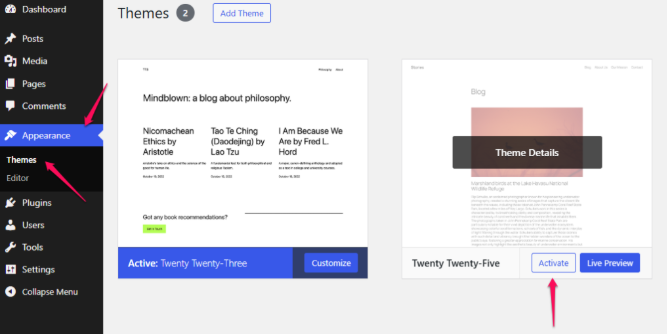
To enable an already installed theme, after logging in to the “WordPress” backend, go to “Appearance” and there “Themes”.
Then, after hovering your mouse cursor over the theme of your choice, click the “Activate” button.
Before Changing Themes
Before activating a new theme, it is recommended to:
Create a Backup
Always create a full backup of:
- Website files
- Database
- Theme settings
Test on a Staging Environment
If possible, test the theme on a staging website before deploying it to your live site.
Verify Compatibility
Check that the theme is compatible with:
- Your WordPress version
- Installed plugins
- WooCommerce (if applicable)
Review Widgets and Menus
After activating a new theme, verify:
- Navigation menus
- Widget areas
- Homepage settings
- Customizer options
Different themes may use different layouts and widget locations.
Troubleshooting
If the website does not display correctly after changing themes:
- Clear your browser cache.
- Clear any caching plugins.
- Check for plugin conflicts.
- Temporarily switch back to the previous theme to verify whether the issue is theme-related.
Summary
To install a new WordPress theme:
- Go to Appearance → Themes.
- Click Add New Theme.
- Install a theme from the WordPress directory.
- Activate the theme.
Once activated, the new theme will control your website’s appearance and layout.
Didn't find an answer?
Our support team is here for you 24/7 – write to us and we will help you sort it out.