
Skip to content
mybox Help Center

Help sections

  • Getting Started
  • Account & Billing
  • Domains & DNS
  • Hosting & Servers
  • Email
  • Security & SSL
  • WordPress & CMS
  • Grow Online
mybox.com All services operational
/

Language

  • English
  • Română
  • mybox panel
  • Webmail
Start free
/
  • Getting Started
  • Account & Billing
  • Domains & DNS
  • Hosting & Servers
  • Email
  • Security & SSL
  • WordPress & CMS
  • Grow Online
  • Help Center
  • mybox.com
  • English
  • Română
All services operational Start free
  1. Help Center
  2. Email
  3. WebMail mail.mybox.com
How-to Email

How to create a new task in mail.mybox.com

Updated May 31, 2026 1 min read
On this page
  1. New task
  2. Cyclic tasks

The tasks module in mail.mybox.com allows you to create and manage task lists, i.e., to-do lists. It allows you to add, edit, and delete items, as well as set expiration dates and priorities.

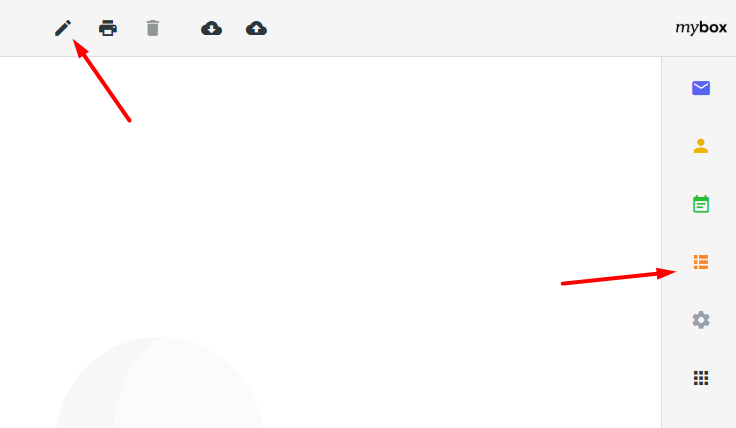
You will find the tasks after logging in to mail.mybox.com, select the orange icon from the menu on the right .

New task

To create a new task, click the pencil icon at the top of the screen.
How to create a new task in mail.mybox.com

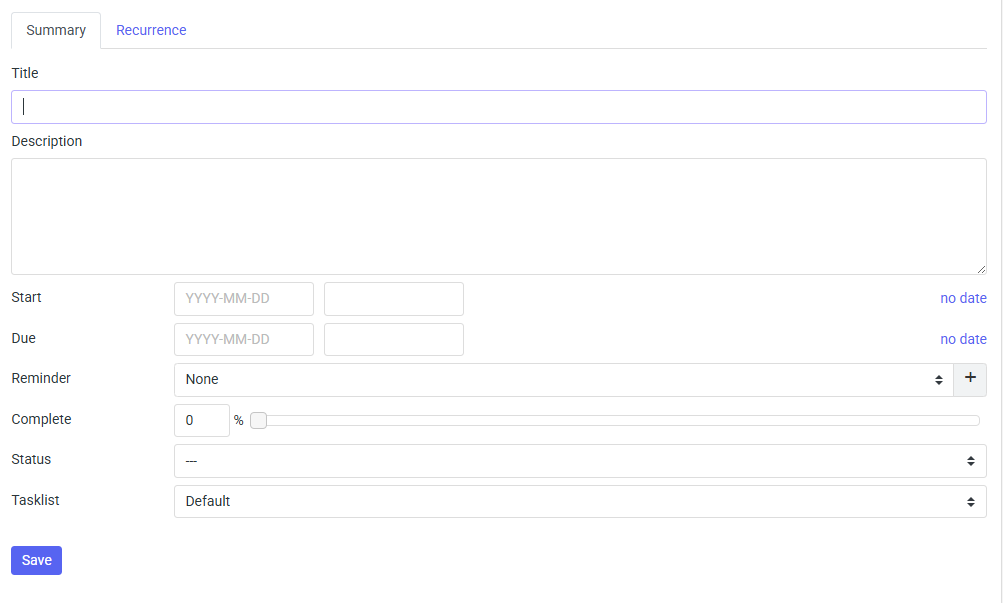
In the form that appears, fill in the Title and Description fields . If the task is to be completed within a specific time, select when it should begin by selecting the date and time under Start and the completion time under Due Date .
How to create a new task in mail.mybox.com – 2

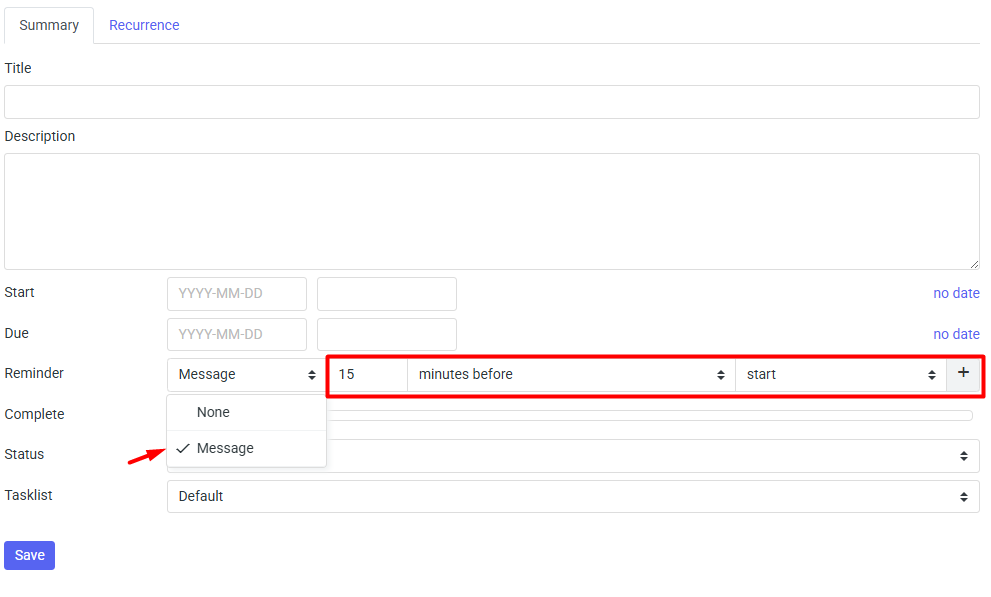
If required, you can use additional options such as a reminder to complete a scheduled task, e.g. 15 minutes before it starts.
How to create a new task in mail.mybox.com – 3

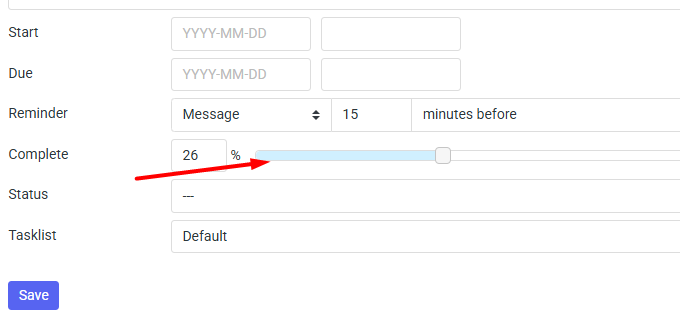
You can mark the progress of a given task using the percentage slider.
How to create a new task in mail.mybox.com – 4

Select the status of the task being performed: Open , In Progress , Completed or Canceled
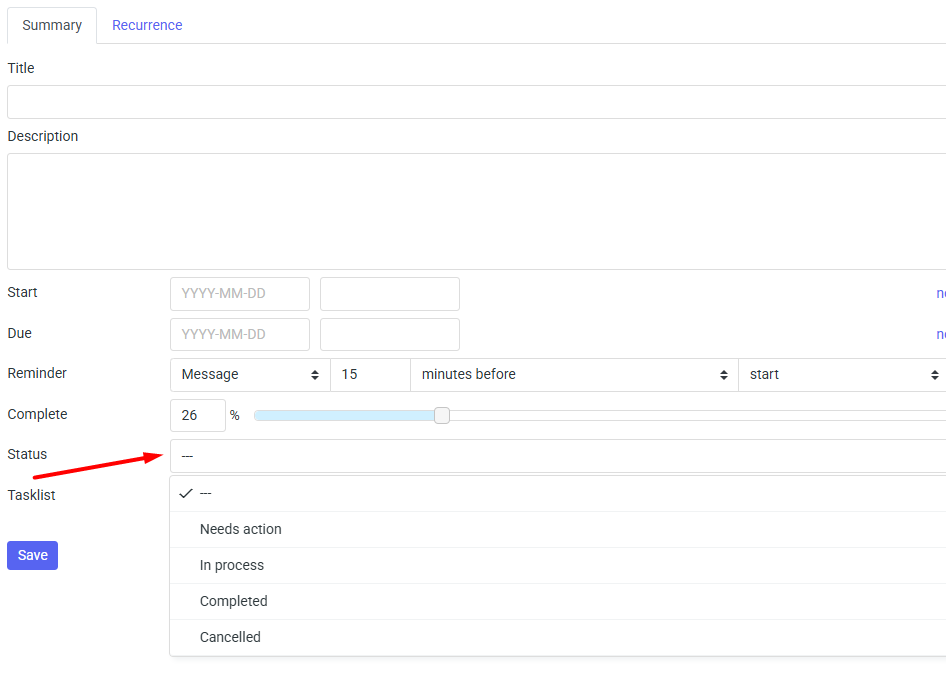
How to create a new task in mail.mybox.com – 5

Or assign them to one of the task lists you can create.
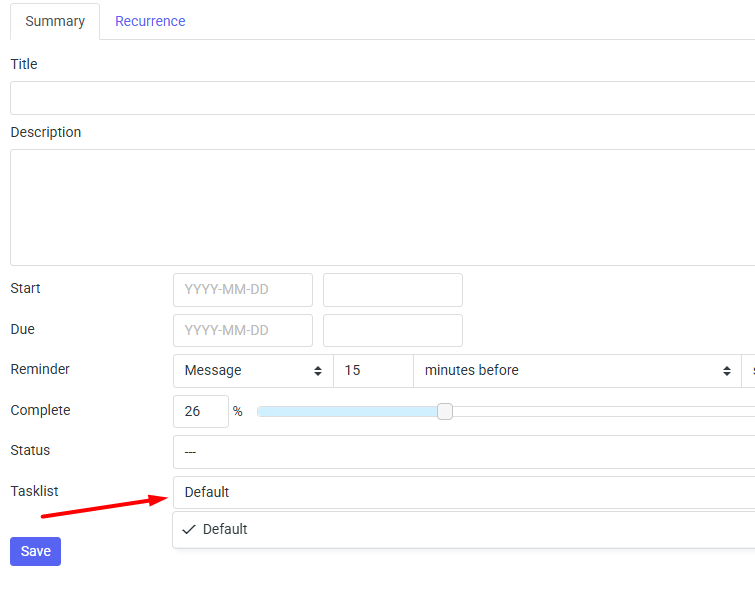
How to create a new task in mail.mybox.com – 6

Cyclic tasks

When creating or editing a task, by going to the Recurrence tab , you can specify whether the task should repeat at a specific time interval.
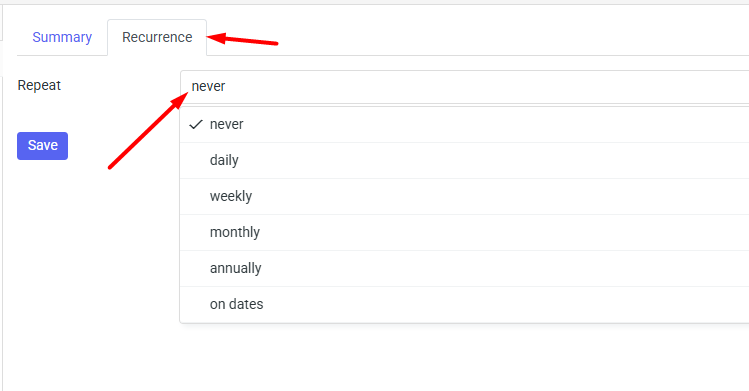
How to create a new task in mail.mybox.com – 7

From the drop-down list, you can choose to repeat the task every day, every week, every month, every year, or according to your own schedule.

Once you have finished filling out the form, click the “Save” button .

Was this article helpful?

Didn't find an answer?

Our support team is here for you 24/7 – write to us and we will help you sort it out.

Helpdesk 24/7 Open a ticket in the mybox panel mybox panel Log in and manage your services

On this page

  1. New task
  2. Cyclic tasks

Related articles

All in WebMail mail.mybox.com
How-to WebMail mail.mybox.com How do I set up two-step verification in Webmail? Security is a priority today, and two-step verification, which requires not only knowing and providing a password, but also a one-time code,… 2 min read How-to WebMail mail.mybox.com How to change your email password in WebMail The mailbox password can be changed directly in webmail at mail.mybox.com — without accessing the mybox panel. This is useful when the… 1 min read Explainer WebMail mail.mybox.com What Is Webmail? Webmail is a web-based interface that allows users to access, send, receive, and manage email messages directly through a web browser without… 2 min read
mybox

Modular web hosting – free out of the box, modular to grow.

Help sections

  • Getting Started
  • Account & Billing
  • Domains & DNS
  • Hosting & Servers
  • Email
  • Security & SSL
  • WordPress & CMS
  • Grow Online

mybox

  • mybox.com
  • mybox panel
  • Webmail
  • Helpdesk 24/7
© 2026 mybox 1,680 articles