
Skip to content
mybox Help Center

Help sections

  • Getting Started
  • Account & Billing
  • Domains & DNS
  • Hosting & Servers
  • Email
  • Security & SSL
  • WordPress & CMS
  • Grow Online
mybox.com All services operational
/

Language

  • English
  • Română
  • mybox panel
  • Webmail
Start free
/
  • Getting Started
  • Account & Billing
  • Domains & DNS
  • Hosting & Servers
  • Email
  • Security & SSL
  • WordPress & CMS
  • Grow Online
  • Help Center
  • mybox.com
  • English
  • Română
All services operational Start free
  1. Help Center
  2. Account & Billing
  3. Service & Resource Management
How-to Account & Billing

How to manage databases in the mybox panel?

Updated February 13, 2026 1 min read

If you want to see a list of all the databases you have created, select Databases in the the mybox panel, and then MySQL Databases.
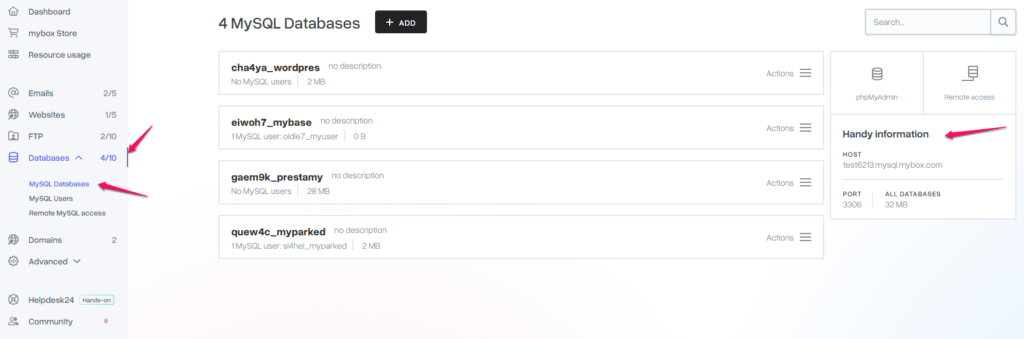
How to manage databases in the mybox panel?

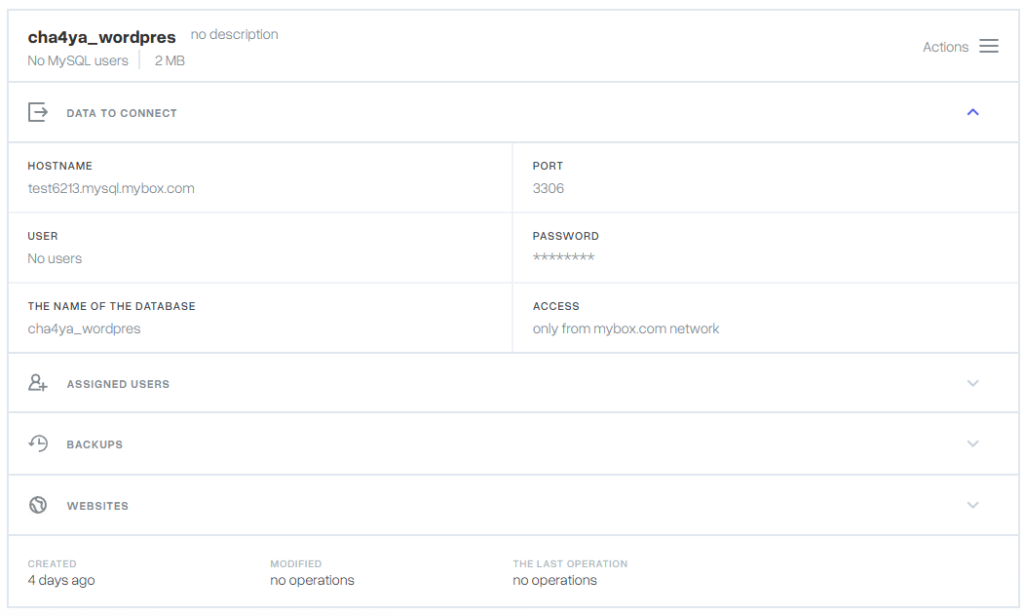
After clicking on the name of the selected database or the Details button, detailed information will be displayed.

General information – Here you will find when the selected database was created and from which IP address, what last operations were performed on it and when the last backup copy is available.
How to manage databases in the mybox panel? – 2

Data to connect – all the necessary data to connect to the selected database.

Assigned users – in this field, you can verify which database users are assigned to the selected database and what permissions they have. You can also manage permissions for the database here.

Backups – in this field you will find all the basic information about the available copies of the selected database.

Additionally, on the right side of each database, you’ll find an Actions button that will give you quick access to the most important options.

  • Add a description – allows you to create a short description of a given database, you can enter here, for example, to which service the database is assigned.
  • Assign user – You can assign a new or subsequent database user for the specified database.
  • Refresh database size – Refreshes the database size immediately.
  • Import from file – you can import any MySQL database.
  • Make a backup – the button allows you to create an up-to-date copy of the selected database.
  • Clear database – Deletes all database contents.
  • Delete database – irreversibly deletes the entire database.

Was this article helpful?

Didn't find an answer?

Our support team is here for you 24/7 – write to us and we will help you sort it out.

Helpdesk 24/7 Open a ticket in the mybox panel mybox panel Log in and manage your services

Related articles

All in Service & Resource Management
How-to Getting Started with mybox How to order a website to be transferred from another hosting At mybox, we provide comprehensive assistance with the transfer of websites and mailboxes from your current hosting provider. This migration process is… 2 min read How-to Getting Started with mybox Ordering a website and email migration to mybox The mybox team can migrate your website and email from your current hosting provider. To request a migration, you need to activate… 1 min read How-to Getting Started with mybox How to migrate a website to mybox Migrating a website to mybox means copying your files, database, and email content from your current hosting provider and pointing your domain… 2 min read
mybox

Modular web hosting – free out of the box, modular to grow.

Help sections

  • Getting Started
  • Account & Billing
  • Domains & DNS
  • Hosting & Servers
  • Email
  • Security & SSL
  • WordPress & CMS
  • Grow Online

mybox

  • mybox.com
  • mybox panel
  • Webmail
  • Helpdesk 24/7
© 2026 mybox 1,680 articles