
How to place information about cookies on a WordPress-based website?
On this page
Cookies are commonly used to improve website functionality, personalize content and advertisements, and collect anonymous usage statistics that help website owners improve their services.
To inform visitors about the use of cookies and help meet privacy compliance requirements, you can use a dedicated WordPress plugin such as Cookie Notice & Compliance for GDPR/CCPA.
Why Display a Cookie Notice?
The General Data Protection Regulation (GDPR) and other privacy regulations require website owners to inform visitors about the collection and processing of personal data.
Cookies may be used for:
- Website functionality
- User preferences
- Analytics and statistics
- Marketing and advertising
- Third-party integrations
Providing clear information about cookie usage helps improve transparency and may be required depending on the technologies used on your website.
Installing the Plugin
Step 1
Log in to your WordPress administration panel.
Step 2
Navigate to:
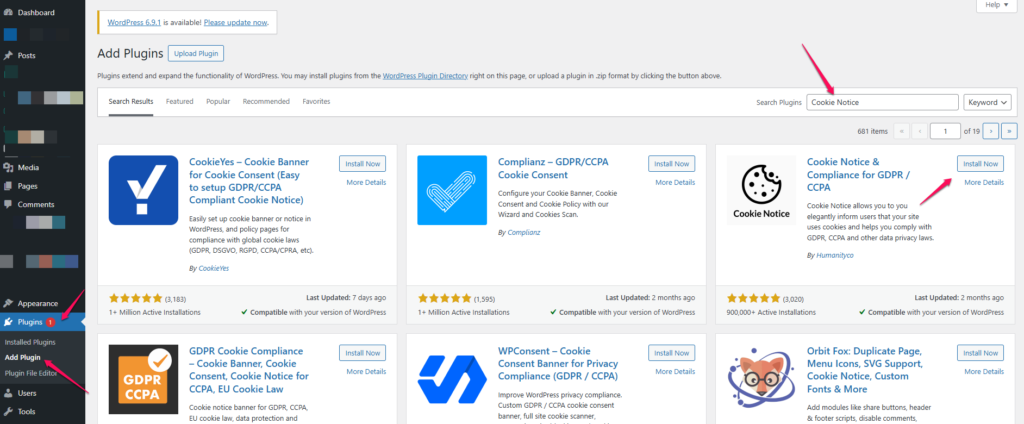
Plugins → Add New
Step 3
In the search field, enter:
Cookie Notice & Compliance for GDPR/CCPA
Step 4
Locate the plugin in the search results and click:
Install Now
Step 5
Once the installation is complete, click:
Activate
Initial Setup
After activation, the plugin may display a setup wizard or prompt you to run a compliance scan.
You may also see information about:
- Creating an account
- Additional compliance services
- Premium features
These options are optional and not required for displaying a cookie notice on your website.
If you do not wish to use these additional services, you can dismiss the notification and continue with the basic configuration.
Configuring the Cookie Notice
Step 1
In the WordPress administration menu, navigate to:
Cookies
or
Cookie Notice
depending on the plugin version.
Step 2
Customize the notice content.
Typical settings include:
- Cookie notification text
- Accept button text
- Reject button text (if enabled)
- Privacy policy link
- Banner position
- Colors and appearance
Example Notice Text
This website uses cookies to improve your browsing experience, analyze traffic, and provide personalized content. By continuing to use this website, you agree to our use of cookies.
Step 3
If you have a Privacy Policy page, add its URL in the appropriate settings field.
Step 4
Save your changes.
Displaying the Notice to Visitors
Once configured and saved, the cookie banner will automatically appear to visitors accessing your website.
Depending on your settings, visitors may be able to:
- Accept cookies
- Reject non-essential cookies
- Review additional cookie information
- Open the Privacy Policy page
Benefits of Using a Cookie Notice Plugin
Using a dedicated plugin allows you to:
- Inform visitors about cookie usage
- Improve privacy transparency
- Link directly to your Privacy Policy
- Customize the appearance of the notification
- Manage visitor consent preferences
Summary
To display a cookie notice on a WordPress website:
- Install and activate the Cookie Notice & Compliance for GDPR/CCPA plugin.
- Navigate to the plugin settings.
- Configure the notice text and privacy policy link.
- Save your changes.
After configuration, visitors will automatically see a cookie notification when accessing your website, helping you communicate how cookies are used and improving transparency regarding data processing.
Didn't find an answer?
Our support team is here for you 24/7 – write to us and we will help you sort it out.