
Skip to content
mybox Help Center

Help sections

  • Getting Started
  • Account & Billing
  • Domains & DNS
  • Hosting & Servers
  • Email
  • Security & SSL
  • WordPress & CMS
  • Grow Online
mybox.com All services operational
/

Language

  • English
  • Română
  • mybox panel
  • Webmail
Start free
/
  • Getting Started
  • Account & Billing
  • Domains & DNS
  • Hosting & Servers
  • Email
  • Security & SSL
  • WordPress & CMS
  • Grow Online
  • Help Center
  • mybox.com
  • English
  • Română
All services operational Start free
  1. Help Center
  2. Account & Billing
  3. Service & Resource Management
How-to Account & Billing

How to Request a Website File Backup Restore

Updated June 2, 2026 1 min read
On this page
  1. Step 1: Open the Website Settings
  2. Step 2: Access Available Backups
  3. Step 3: Confirm the Restore Request
  4. Important Notes

If you need to restore website files from a backup, you can do so directly from the mybox panel.

Step 1: Open the Website Settings

  1. Log in to the mybox panel.
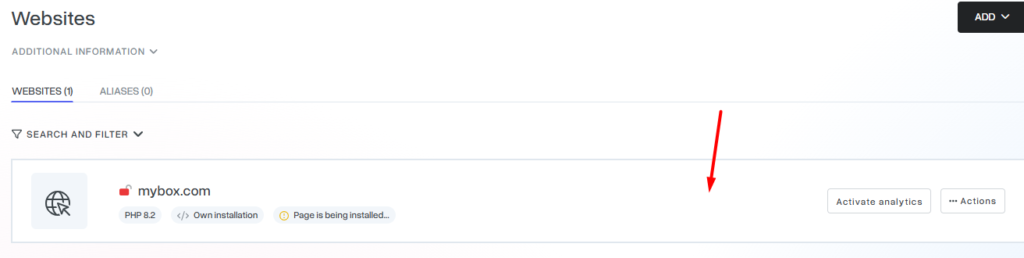
  2. In the left-hand menu, click Websites.
  3. Select the website for which you want to restore files.
How to Request a Website File Backup Restore

Step 2: Access Available Backups

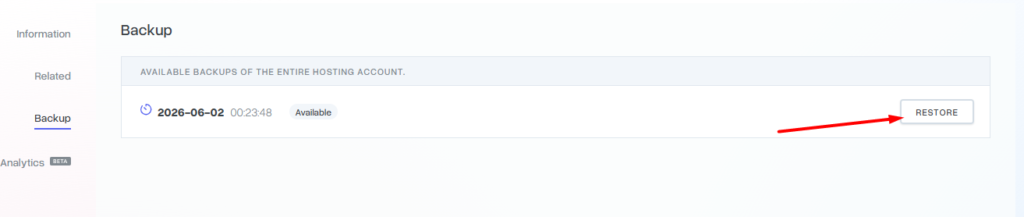
  1. In the website management screen, click Backups in the left-hand menu.
  2. Locate the desired restore point.
  3. Click Restore next to the backup you want to recover.
How to Request a Website File Backup Restore – 2

Step 3: Confirm the Restore Request

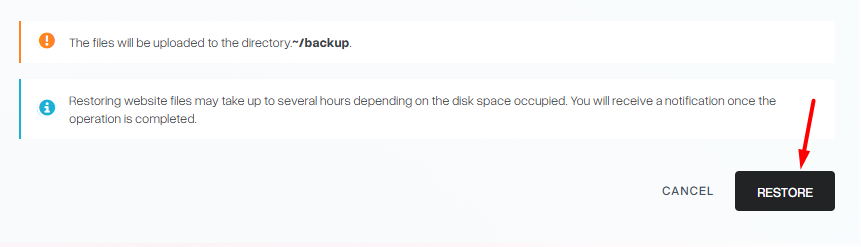
  1. Review the selected restore point.
  2. Click Restore again to confirm the operation.
How to Request a Website File Backup Restore – 3

Important Notes

  • Restored files are placed in the ~/backup directory.
  • Existing website files are not automatically overwritten during the restore process.
  • Depending on the size of the website and the number of files being restored, the process may take anywhere from a few minutes to several hours.

After the restoration is complete, you can review the recovered files in the ~/backup directory and manually copy any required content back to your website.

Was this article helpful?

Didn't find an answer?

Our support team is here for you 24/7 – write to us and we will help you sort it out.

Helpdesk 24/7 Open a ticket in the mybox panel mybox panel Log in and manage your services

On this page

  1. Step 1: Open the Website Settings
  2. Step 2: Access Available Backups
  3. Step 3: Confirm the Restore Request
  4. Important Notes

Related articles

All in Service & Resource Management
How-to Getting Started with mybox How to order a website to be transferred from another hosting At mybox, we provide comprehensive assistance with the transfer of websites and mailboxes from your current hosting provider. This migration process is… 2 min read How-to Getting Started with mybox Ordering a website and email migration to mybox The mybox team can migrate your website and email from your current hosting provider. To request a migration, you need to activate… 1 min read How-to Getting Started with mybox How to migrate a website to mybox Migrating a website to mybox means copying your files, database, and email content from your current hosting provider and pointing your domain… 2 min read
mybox

Modular web hosting – free out of the box, modular to grow.

Help sections

  • Getting Started
  • Account & Billing
  • Domains & DNS
  • Hosting & Servers
  • Email
  • Security & SSL
  • WordPress & CMS
  • Grow Online

mybox

  • mybox.com
  • mybox panel
  • Webmail
  • Helpdesk 24/7
© 2026 mybox 1,680 articles