
How to translate an installed module in PrestaShop?
PrestaShop includes a built-in translation system that allows you to modify the text displayed by installed modules without editing any files manually. This is useful when you want to customize button labels, messages, form fields, or other module content shown in your store or administration panel.
To translate the module installed within the Prestashop store, after logging in to the Panel , select Enhancements, International and then Translations from the left menu in the admin panel. You can choose from 5 sections:
- Translation admin panel,
- Template translation,
- Translation of installed modules,
- Email translations,
- Other translations.
We are interested in the Modify Translations section.
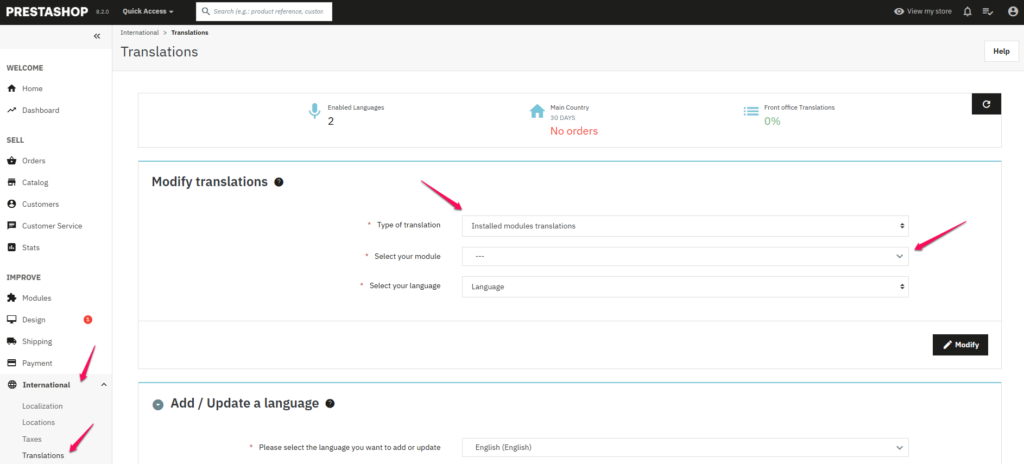
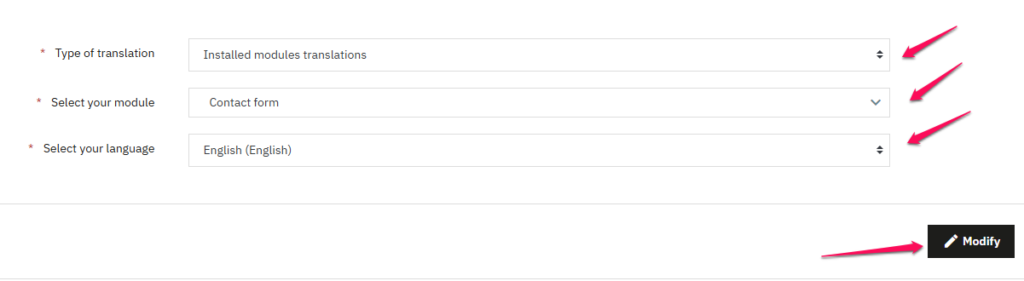
In this post, we will focus on translating the installed modules and using the example of the Contact Form module, you will see how to quickly change the content both on the front-end and in the panel. In the Modify translations section, set the following settings:
- Translation type: translation of installed modules
- Select the module: Contact form (yes – this is the current name of this module)
- Select your language: English
and click the Modify button.
In the newly opened tab, there is a list of phrases in English and translations into Polish proposed by the system. The Admin tab refers to the phrases contained in the administration panel. The Shop tab is responsible for the content displayed directly on the store. Once you’ve made the necessary changes, press the Save button and remember to always check the changes you’ve made on your store.
If your changes don’t appear on your store page, you’ll need to clear your cache (depending on your settings). To do this, go to the Advanced, Performance tab in the admin panel and click on Clear cache in the upper right corner.
Didn't find an answer?
Our support team is here for you 24/7 – write to us and we will help you sort it out.