
Installing a CMS from the mybox panel
You can install the CMS scripts that you want to use when running your website using the traditional You can install a CMS directly from the mybox panel using the automatic installer. This is faster than a manual installation via FTP and requires no technical configuration — the system handles the setup automatically.
How to install a CMS
Step 1 — Go to the Websites section Log in to your mybox panel and open the Websites section. You will see a list of your active websites.
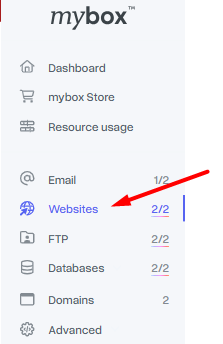
Step 2 — Select Web application Click +Add and select Web application from the list.

Step 3 — Choose the installation address In the window that appears, select the domain or address where you want to install the CMS. The panel will suggest available options including your parked domains and free mybox subdomains:
- yourdomain.mybox.me
- yourdomain.mybox.company
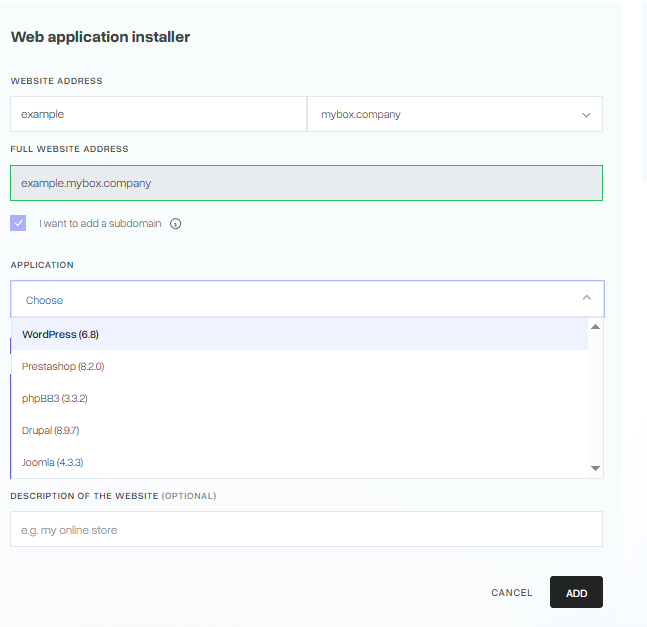
Step 4 — Choose the application and confirm Select the CMS you want to install and confirm. The installation runs automatically. Once complete, your access credentials will appear in the panel — you can also download them as a PDF.
The installed version is identical to what you would download directly from the application’s official website.
Didn't find an answer?
Our support team is here for you 24/7 – write to us and we will help you sort it out.