
Skip to content
mybox Help Center

Help sections

  • Getting Started
  • Account & Billing
  • Domains & DNS
  • Hosting & Servers
  • Email
  • Security & SSL
  • WordPress & CMS
  • Grow Online
mybox.com All services operational
/

Language

  • English
  • Română
  • mybox panel
  • Webmail
Start free
/
  • Getting Started
  • Account & Billing
  • Domains & DNS
  • Hosting & Servers
  • Email
  • Security & SSL
  • WordPress & CMS
  • Grow Online
  • Help Center
  • mybox.com
  • English
  • Română
All services operational Start free
  1. Help Center
  2. Account & Billing
  3. Service & Resource Management
How-to Account & Billing

Managing installed applications

Updated June 2, 2026 1 min read
On this page
  1. Context
  2. Website management sections
  3. Website Information
  4. SSL Certificate
  5. WWW Aliases
  6. Email Addresses
  7. FTP Accounts
  8. MySQL Databases
  9. Summary

Context

Each website in mybox is managed as a separate service within the hosting panel. From the website list, you can access configuration details, security settings, file access, and related services such as email, FTP, and databases.

To manage a website, go to the list of websites and click either the website name or the Status button next to it.

Website management sections

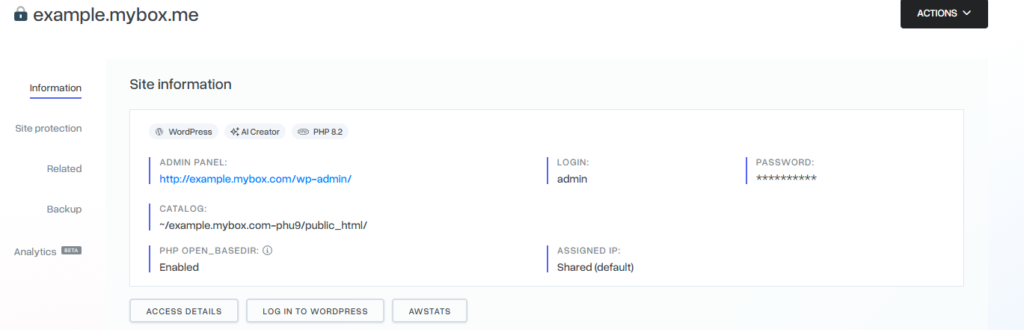
Website Information
Managing installed applications

This section provides general technical details about the website, including:

  • the FTP directory the website is pointing to
  • the active PHP version
  • installation date and last modification date
  • access credentials and configuration details

This information is useful for verifying the technical setup of the website.

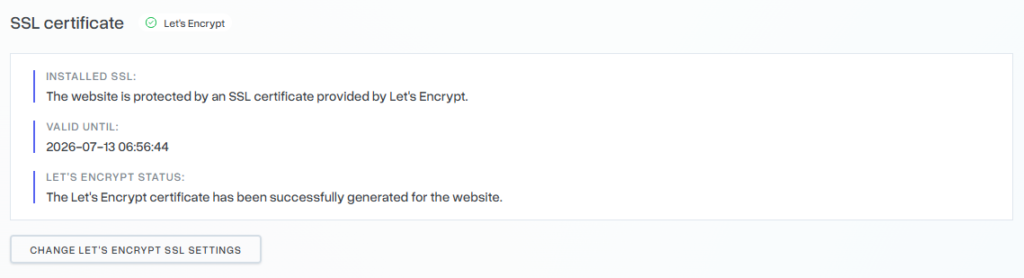
SSL Certificate
Managing installed applications – 2

This section shows the status of the SSL certificate assigned to the website.

You can:

  • view current SSL status
  • check certificate details
  • order a new SSL certificate if needed

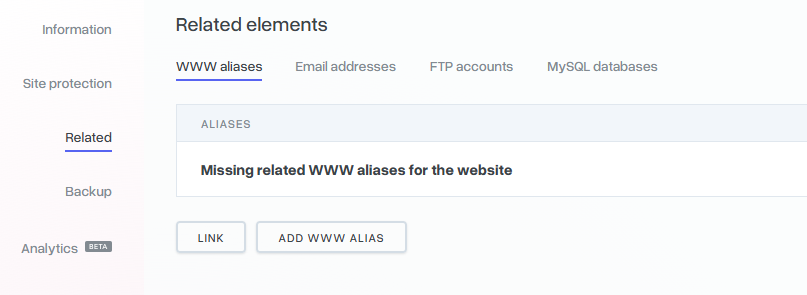
WWW Aliases
Managing installed applications – 3

WWW aliases are additional domain names assigned to the same website.

In this section you can:

  • view existing aliases
  • add a new alias
  • assign an existing alias to the website

Aliases allow multiple domains to point to the same content.

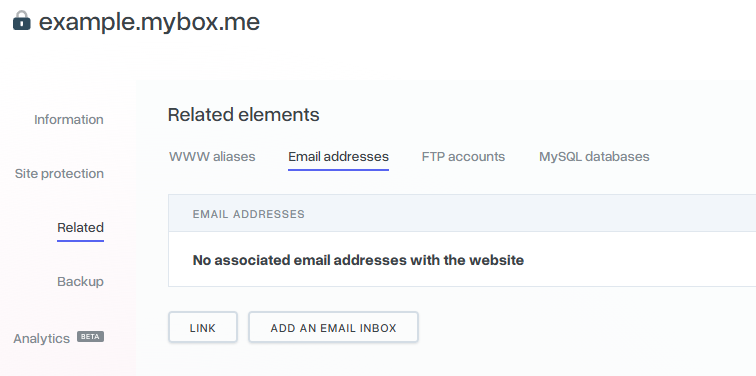
Email Addresses
Managing installed applications – 4

This section lists all email accounts associated with the website.

From here you can:

  • view existing mailboxes
  • manage email accounts linked to the domain

FTP Accounts
Managing installed applications – 5

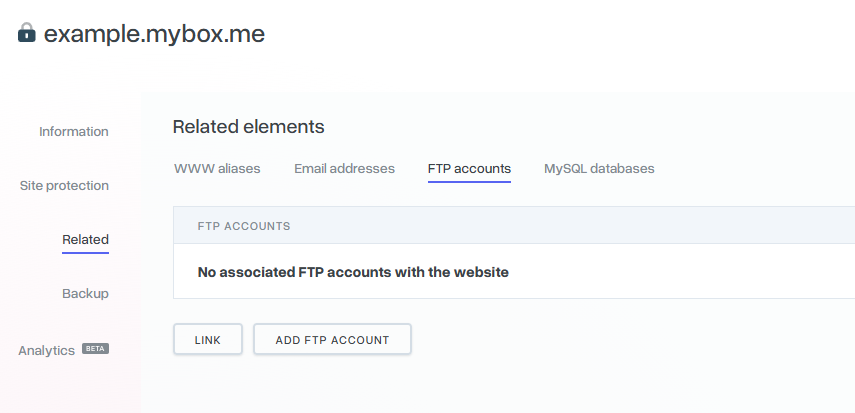
This section shows FTP accounts connected to the website.

Each FTP account provides access only to the assigned website directory, ensuring isolated file management per site.

MySQL Databases
Managing installed applications – 6

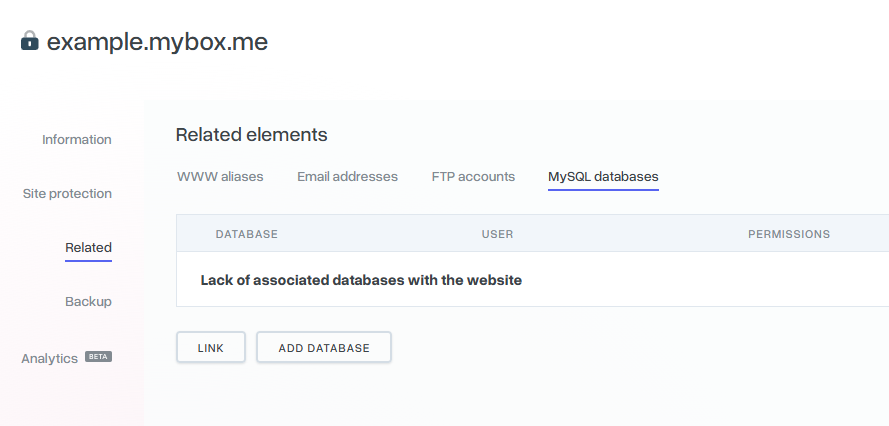
This section displays database connections linked to the website.

You can view:

  • the database name
  • the associated database user
  • connection details used by the application

This is useful for troubleshooting CMS applications such as WordPress or PrestaShop.

Summary

Website management in mybox is centralized in the website details view. From there, you can manage technical configuration, SSL certificates, aliases, email accounts, FTP access, and database connections in one place.

Was this article helpful?

Didn't find an answer?

Our support team is here for you 24/7 – write to us and we will help you sort it out.

Helpdesk 24/7 Open a ticket in the mybox panel mybox panel Log in and manage your services

On this page

  1. Context
  2. Website management sections
  3. Website Information
  4. SSL Certificate
  5. WWW Aliases
  6. Email Addresses
  7. FTP Accounts
  8. MySQL Databases
  9. Summary

Related articles

All in Service & Resource Management
How-to Getting Started with mybox How to order a website to be transferred from another hosting At mybox, we provide comprehensive assistance with the transfer of websites and mailboxes from your current hosting provider. This migration process is… 2 min read How-to Getting Started with mybox Ordering a website and email migration to mybox The mybox team can migrate your website and email from your current hosting provider. To request a migration, you need to activate… 1 min read How-to Getting Started with mybox How to migrate a website to mybox Migrating a website to mybox means copying your files, database, and email content from your current hosting provider and pointing your domain… 2 min read
mybox

Modular web hosting – free out of the box, modular to grow.

Help sections

  • Getting Started
  • Account & Billing
  • Domains & DNS
  • Hosting & Servers
  • Email
  • Security & SSL
  • WordPress & CMS
  • Grow Online

mybox

  • mybox.com
  • mybox panel
  • Webmail
  • Helpdesk 24/7
© 2026 mybox 1,680 articles