
Reinstalling WordPress
Reinstalling WordPress replaces the core WordPress files with a fresh copy of the same version. It does not affect your content, database, plugins, or theme — only the core files are overwritten.
This is useful when you suspect that a recent update did not complete correctly, or when you want to replace potentially compromised core files after a malware infection.
How to reinstall WordPress
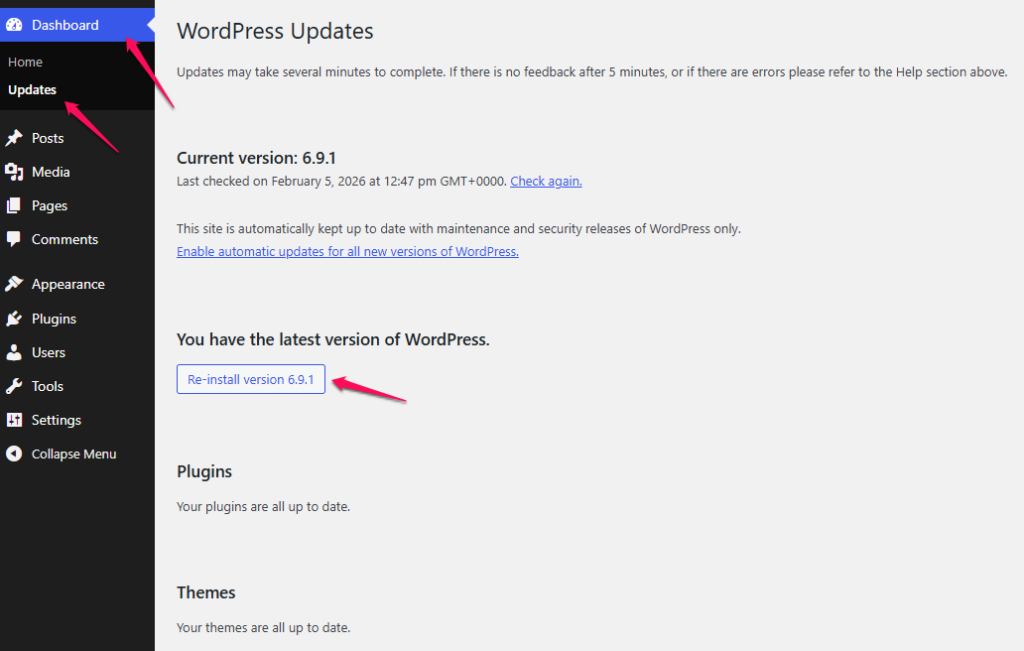
Log in to your WordPress admin panel and go to Dashboard → Updates. You will see information about the currently installed version and a Reinstall [version] now button. Click it to start the process.
WordPress will download and replace all core files. The process takes a few seconds. Your site remains accessible throughout.
What reinstalling does and does not change
| Affected by reinstall | |
| WordPress core files | ✅ Replaced with fresh copy |
| Your posts and pages | ❌ Not affected |
| Plugins and themes | ❌ Not affected |
| Database | ❌ Not affected |
| wp-config.php | ❌ Not affected |
If you suspect a deeper malware infection affecting plugins, themes, or uploaded files, a reinstall alone may not be sufficient. Contact support or use the malware protection tools available in your mybox panel.
Didn't find an answer?
Our support team is here for you 24/7 – write to us and we will help you sort it out.