
Skip to content
mybox Help Center

Help sections

  • Getting Started
  • Account & Billing
  • Domains & DNS
  • Hosting & Servers
  • Email
  • Security & SSL
  • WordPress & CMS
  • Grow Online
mybox.com All services operational
/

Language

  • English
  • Română
  • mybox panel
  • Webmail
Start free
/
  • Getting Started
  • Account & Billing
  • Domains & DNS
  • Hosting & Servers
  • Email
  • Security & SSL
  • WordPress & CMS
  • Grow Online
  • Help Center
  • mybox.com
  • English
  • Română
All services operational Start free
  1. Help Center
  2. Email
  3. WebMail mail.mybox.com
Explainer Email

Where do I change my general calendar settings?

Updated February 4, 2026 1 min read

Once you have logged in to mail.mybox.com, click on the “gear” icon located on the right. Once the settings page loads, select “Preferences” from the left, and then “Calendar”.
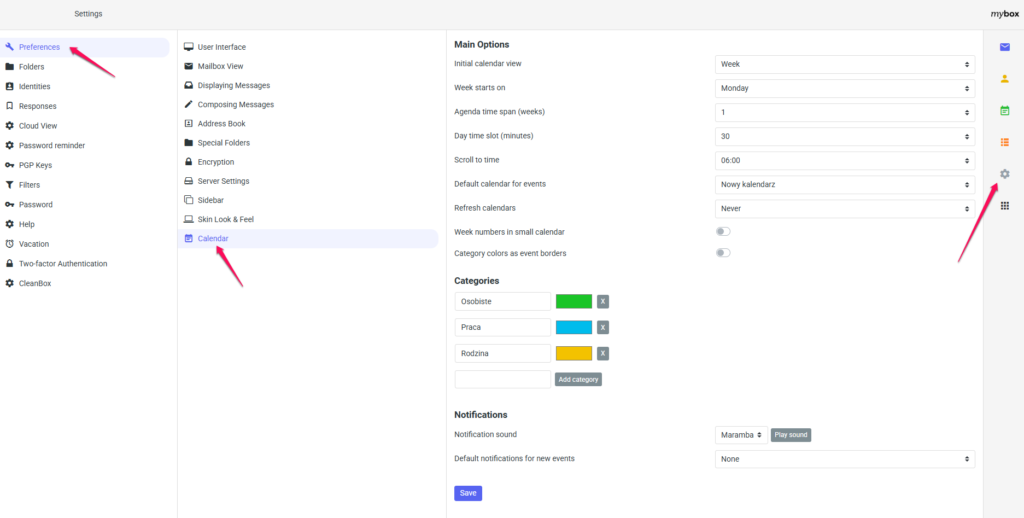
Where do I change my general calendar settings?

What can you set up?

  • Initial Calendar View – i.e. the time frame that you want to occur by default when the calendar view loads. This can be a month, a week, a day, or a view that includes the meeting agenda.
  • Beginning of the week in – determines whether you start your work week and thus the tasks in the calendar on Monday, or selected another day of the week.
  • Single Field Duration (min) – will specify the minimum value for the duration of the meeting/event within one calendar cell. By default, this value is 30 minutes, but if your meetings are generally longer, you can change this value.
  • Scroll to the moment – specifies the time that should appear at the top of the calendar view and thus be treated as the beginning of your day.
  • Default calendar for events – assuming that more calendars have been created, e.g. divided into private, home, company, will allow you to define which one will be treated as the default when adding a new meeting/event.
  • Numbering weeks in a small calendar – specify whether to number weeks in the small calendar view.
  • Category Colors as Event Boundaries – Makes the category colors specified below to be used as event borders.
  • Categories – categories divided into names of your choice and also include a color tag
  • Notifications – set what sound should appear when an event alert is set.

Was this article helpful?

Didn't find an answer?

Our support team is here for you 24/7 – write to us and we will help you sort it out.

Helpdesk 24/7 Open a ticket in the mybox panel mybox panel Log in and manage your services

Related articles

All in WebMail mail.mybox.com
How-to WebMail mail.mybox.com How do I set up two-step verification in Webmail? Security is a priority today, and two-step verification, which requires not only knowing and providing a password, but also a one-time code,… 2 min read How-to WebMail mail.mybox.com How to change your email password in WebMail The mailbox password can be changed directly in webmail at mail.mybox.com — without accessing the mybox panel. This is useful when the… 1 min read Explainer WebMail mail.mybox.com What Is Webmail? Webmail is a web-based interface that allows users to access, send, receive, and manage email messages directly through a web browser without… 2 min read
mybox

Modular web hosting – free out of the box, modular to grow.

Help sections

  • Getting Started
  • Account & Billing
  • Domains & DNS
  • Hosting & Servers
  • Email
  • Security & SSL
  • WordPress & CMS
  • Grow Online

mybox

  • mybox.com
  • mybox panel
  • Webmail
  • Helpdesk 24/7
© 2026 mybox 1,680 articles