
WinSCP configuration
A popular free program for securely transferring files via SSH (SCP/SFTP) and FTP.
WinSCP offers two interfaces to choose from: one with panels resembling Total Commander, the other with a single pane resembling Windows Explorer. The transmission is encrypted, with AES, Blowfish, 3DES and DES cryptographic protocols available. The SSH protocol is supported in both version 1 and 2. The program is easy to use, and at the same time has a lot of useful features, e.g. for people uploading files to a web server via SSH.
Download WinSCP from the manufacturer’s website.
1. After turning on WinSCP, go to the Session tab.
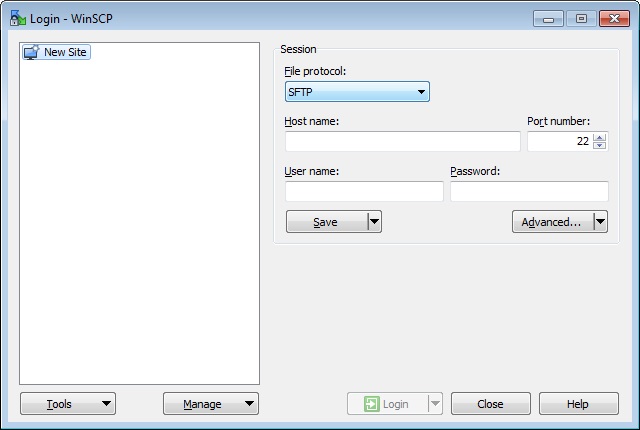
- Hostname – enter the host from the System Information tab from the the mybox panel (the tab is on the right)
- Port – (optional) enter 21
- Username – enter the details of our FTP account previously created in the mybox panel
- Password – leave blank
- File protocol – select FTP
If you want to save data to the FTP server, select the Save button.
2. In order to connect to the FTP account, click the Login button.
Didn't find an answer?
Our support team is here for you 24/7 – write to us and we will help you sort it out.