Skip to content
mybox Help Center

Help sections

  • Getting Started
  • Account & Billing
  • Domains & DNS
  • Hosting & Servers
  • Email
  • Security & SSL
  • WordPress & CMS
  • Grow Online
mybox.com All services operational
/

Language

  • English
  • Română
  • mybox panel
  • Webmail
Start free
/
  • Getting Started
  • Account & Billing
  • Domains & DNS
  • Hosting & Servers
  • Email
  • Security & SSL
  • WordPress & CMS
  • Grow Online
  • Help Center
  • mybox.com
  • English
  • Română
All services operational Start free
  1. Help Center
  2. Account & Billing
  3. Service & Resource Management
How-to Account & Billing

How can I delete a previously added website from the myBox panel?

Updated June 3, 2026 1 min read

Before Deleting a Website

It is recommended to:

  • Create a backup of website files
  • Export the database
  • Verify that the website is no longer needed
  • Confirm that no other domains or subdomains use the same directory

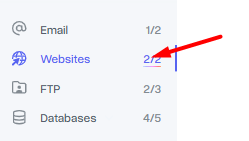
If you no longer need a website and want to remove it from the mybox Panel, you can delete it directly from the “Websites” section.

Common reasons for deleting a website include:

  • Reinstalling a CMS such as WordPress or PrestaShop
  • Creating a new version of a website
  • Removing a test or development environment
  • Cleaning up unused websites

How can I delete a previously added website from the myBox panel?

Then, in the list of pages, select the “Actions” button

How can I delete a previously added website from the myBox panel? – 2

and then select the last item from the expanded list: “Delete”

How can I delete a previously added website from the myBox panel? – 3

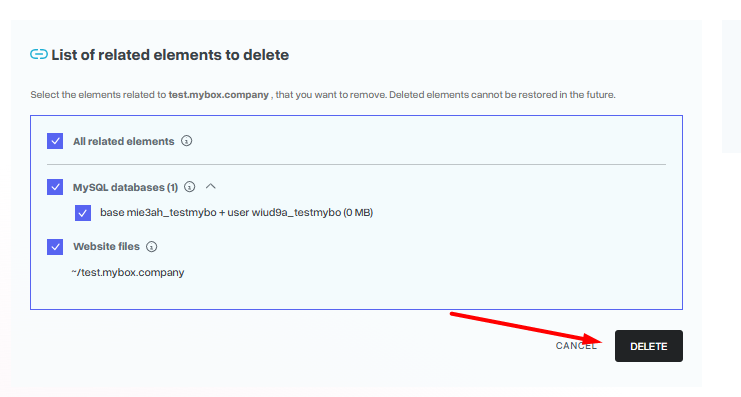
In the box that appears, confirm the operation with the “Yes, delete” button, making sure that you have the correct page deleted.
How can I delete a previously added website from the myBox panel? – 4

Please note that deleting a page from the myBox panel does not delete the files or database. They remain on the server, so if you want to free up space, you need to delete the files yourself using the FTP client application. HERE you will find instructions on how to set up the WinSCP client application.

Was this article helpful?

Didn't find an answer?

Our support team is here for you 24/7 – write to us and we will help you sort it out.

Helpdesk 24/7 Open a ticket in the mybox panel mybox panel Log in and manage your services

Related articles

All in Service & Resource Management
How-to Getting Started with mybox How to order a website to be transferred from another hosting At mybox, we provide comprehensive assistance with the transfer of websites and mailboxes from your current hosting provider. This migration process is… 2 min read How-to Getting Started with mybox Ordering a website and email migration to mybox The mybox team can migrate your website and email from your current hosting provider. To request a migration, you need to activate… 1 min read How-to Getting Started with mybox How to migrate a website to mybox Migrating a website to mybox means copying your files, database, and email content from your current hosting provider and pointing your domain… 2 min read
mybox

Modular web hosting – free out of the box, modular to grow.

Help sections

  • Getting Started
  • Account & Billing
  • Domains & DNS
  • Hosting & Servers
  • Email
  • Security & SSL
  • WordPress & CMS
  • Grow Online

mybox

  • mybox.com
  • mybox panel
  • Webmail
  • Helpdesk 24/7
© 2026 mybox 1,680 articles