
How do I import a Gmail inbox?
On this page
In order to import your Gmail inbox correctly, make sure that you have taken the steps described below beforehand:
- Activation of access via IMAP.
- Disabling the threading option.
- Activation of two-step verification.
- Generate a password for the app.
- Import order in the mybox panel.
Not sure how to check and follow the steps described above? We are here to help!
How to enable IMAP in Gmail:
- Sign in to your Gmail account.
- Click on the settings icon in the upper right corner of the screen (gear).
- Select “See all settings”.
- Go to the “Forwarding and POP/IMAP” tab.
- Select “Enable IMAP”.
- Click “Save Changes”.
To turn off conversations in Gmail:
- Sign in to your Gmail account.
- Click on the settings icon in the upper right corner of the screen (gear).
- Select “See all settings”.
- Go to the “General” tab.
- Select “Thread View”.
- Select the “Thread View Off” option.
- Click “Save Changes”.
To enable two-step authentication in Gmail:
- Sign in to your Gmail account.
- Click on your Google account in the upper right corner of the screen and select “Account” or “Account management” or by going directly to the page: https://myaccount.google.com/apppasswords
- Go to the “Security” tab.
- Scroll down and find the “Two-Step Verification” option. Click on the “Enable” button.
- Follow the on-screen instructions and enter the phone number that will be used for verification.
- You will receive a verification code on your phone. Enter this code on the screen to confirm that you want to enable two-step verification.
- Click on the “Done” button to complete the process of enabling two-step verification.
How to generate a password for an app in Gmail:
- Sign in to your Gmail account.
- Click on your Google account in the top right corner of the screen and select “Account” or “Account Management.”
- Go to the “Security” tab.
- Scroll down and find the “App Passwords” option. Click on it.
- Select the app for which you want to generate a password, e.g. “Mail”.
- Select “Other” as the device type and give the app a name.
- Click on the “Create” button.
- You will be given a unique password that you should copy and use in the application for which it was generated.
How to order the import of a mailbox in the mybox panel:
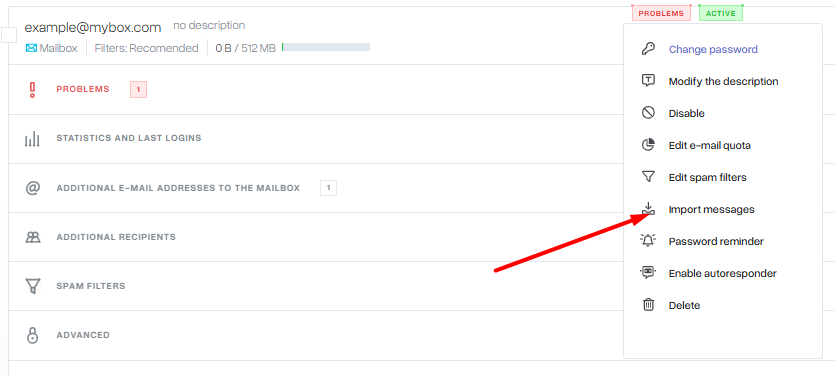
- Log in to the mybox panel.
- Go to the “Email” section in the menu on the left.
- Next to the selected mailbox, select “Import Messages” from the “Actions” menu.
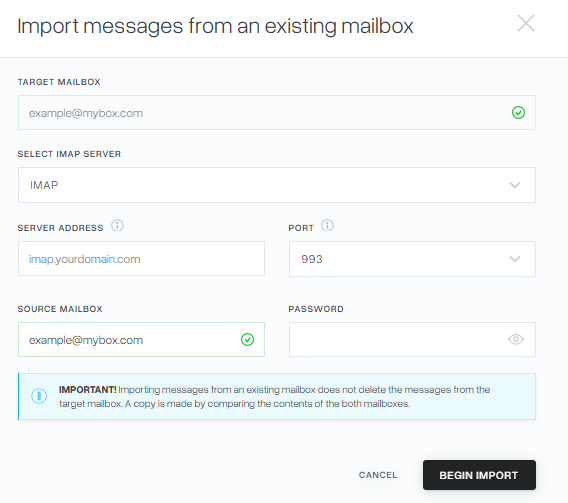
- From the “select a server address” list, select the “Gmail” option.
- In the “source mailbox” field, enter your Gmail address, and in the passwords field, the password for the application generated by the procedure described above.
- Click the “Order Import” button to start the process.
Didn't find an answer?
Our support team is here for you 24/7 – write to us and we will help you sort it out.