
Skip to content
mybox Help Center

Help sections

  • Getting Started
  • Account & Billing
  • Domains & DNS
  • Hosting & Servers
  • Email
  • Security & SSL
  • WordPress & CMS
  • Grow Online
mybox.com All services operational
/

Language

  • English
  • Română
  • mybox panel
  • Webmail
Start free
/
  • Getting Started
  • Account & Billing
  • Domains & DNS
  • Hosting & Servers
  • Email
  • Security & SSL
  • WordPress & CMS
  • Grow Online
  • Help Center
  • mybox.com
  • English
  • Română
All services operational Start free
  1. Help Center
  2. Account & Billing
  3. Service & Resource Management
How-to Account & Billing

How do I reconnect an accidentally deleted website to my original domain?

Updated February 5, 2026 1 min read

It may happen that having several or even a dozen websites on your account, a mistake will occur when deleting one of them and the wrong domain will be removed from the list.

Remember that removing a page from the list in the myBox panel does not automatically delete files and databases related to the page, so to fix the mistake, you just need to add the web page again.

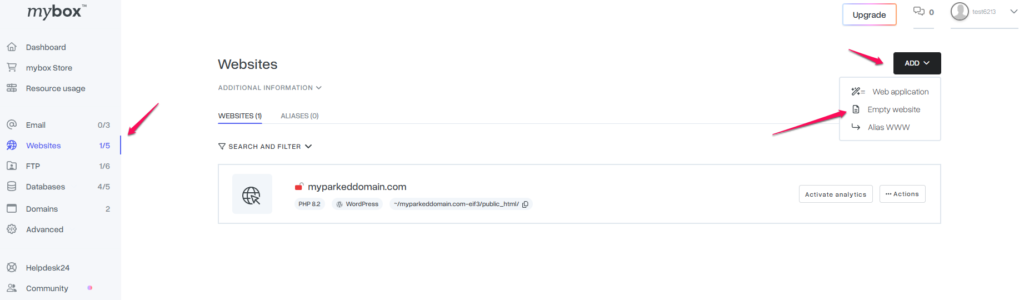
1. In the myBox panel, go to the section: “Websites” and click the “+Add” button there
How do I reconnect an accidentally deleted website to my original domain?

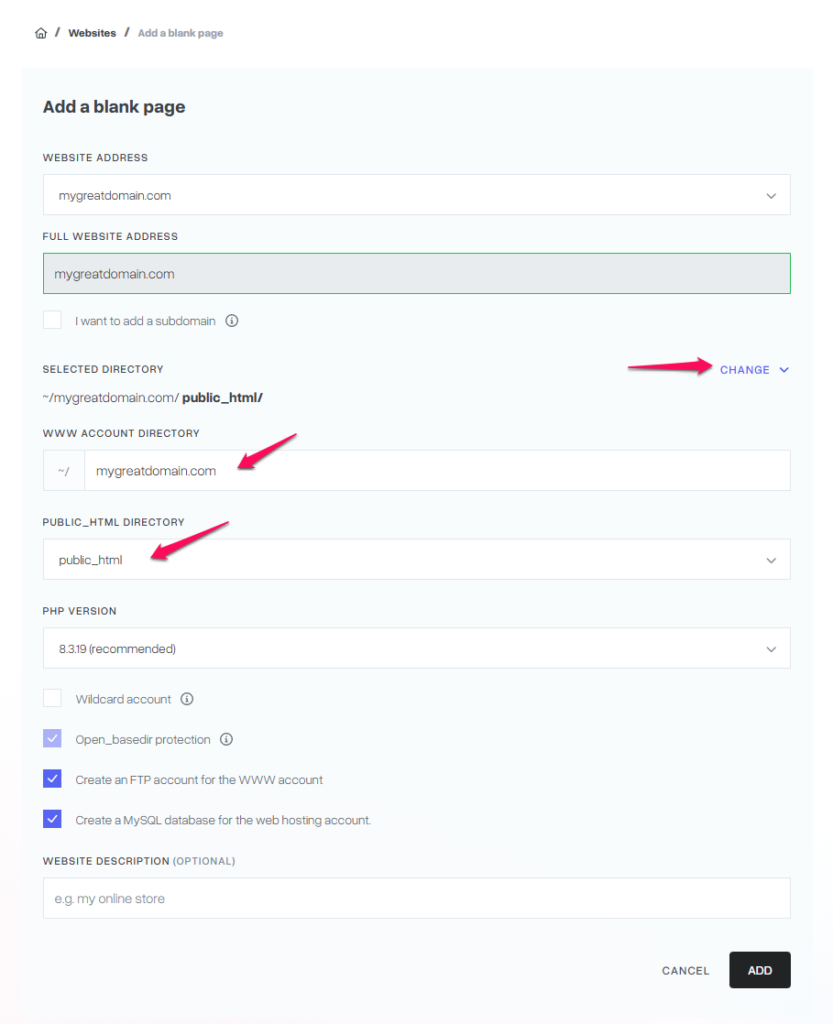
2. In the first field, enter the domain name of the website that has been deleted, and then in the field containing the path, make sure that it is the same as the one where the website has been running so far.
How do I reconnect an accidentally deleted website to my original domain? – 2

If you are not sure, you can check the directory structure and thus the paths by logging in to the FTP of your account. Instructions on how to log in using the “WinSCP” application can be found HERE.

3. After adding the page again, it may take from a few to several minutes before the website starts responding again. This is the time required for the server settings to reload and refresh.

If you have a problem with adding a website again, contact our support department from the the mybox panel level in the 24h Helpdesk.

Was this article helpful?

Didn't find an answer?

Our support team is here for you 24/7 – write to us and we will help you sort it out.

Helpdesk 24/7 Open a ticket in the mybox panel mybox panel Log in and manage your services

Related articles

All in Service & Resource Management
How-to Getting Started with mybox How to order a website to be transferred from another hosting At mybox, we provide comprehensive assistance with the transfer of websites and mailboxes from your current hosting provider. This migration process is… 2 min read How-to Getting Started with mybox Ordering a website and email migration to mybox The mybox team can migrate your website and email from your current hosting provider. To request a migration, you need to activate… 1 min read How-to Getting Started with mybox How to migrate a website to mybox Migrating a website to mybox means copying your files, database, and email content from your current hosting provider and pointing your domain… 2 min read
mybox

Modular web hosting – free out of the box, modular to grow.

Help sections

  • Getting Started
  • Account & Billing
  • Domains & DNS
  • Hosting & Servers
  • Email
  • Security & SSL
  • WordPress & CMS
  • Grow Online

mybox

  • mybox.com
  • mybox panel
  • Webmail
  • Helpdesk 24/7
© 2026 mybox 1,680 articles