
Skip to content
mybox Help Center

Help sections

  • Getting Started
  • Account & Billing
  • Domains & DNS
  • Hosting & Servers
  • Email
  • Security & SSL
  • WordPress & CMS
  • Grow Online
mybox.com All services operational
/

Language

  • English
  • Română
  • mybox panel
  • Webmail
Start free
/
  • Getting Started
  • Account & Billing
  • Domains & DNS
  • Hosting & Servers
  • Email
  • Security & SSL
  • WordPress & CMS
  • Grow Online
  • Help Center
  • mybox.com
  • English
  • Română
All services operational Start free
  1. Help Center
  2. Email
  3. Email Client Configuration
How-to Email

How to generate PGP keys in Mozilla Thunderbird?

Updated February 5, 2026 1 min read

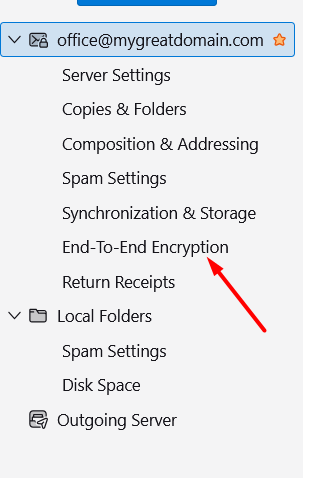
To generate PGP (Pretty Good Privacy) keys directly at the Mozilla Thunderbird application level, run the program and click the “End-to-end encryption” button in the settings page.
How to generate PGP keys in Mozilla Thunderbird?

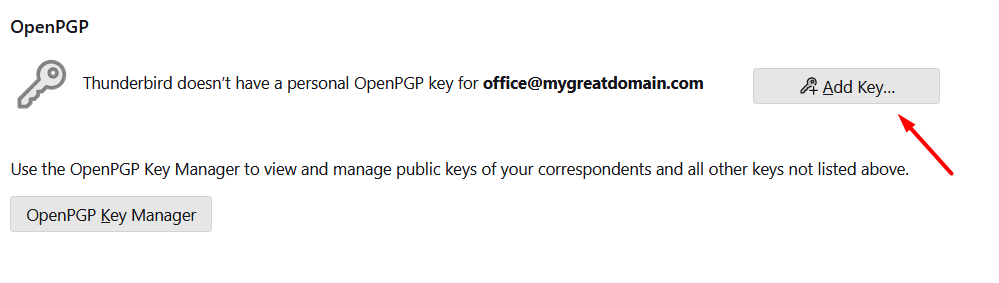
On the page that will be loaded, you will see information that the selected mailbox does not yet have a personal OpenPGP key. Click the “Add Key…” button to proceed to the process of generating it.
How to generate PGP keys in Mozilla Thunderbird? – 2

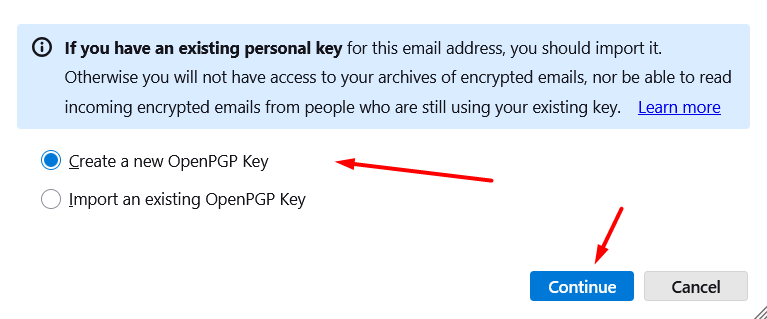
The app will tell you two options to choose from. Create a new key or import an existing one. In this guide, we’re all about creating, so check the first option and click the “Continue” button to move on.
How to generate PGP keys in Mozilla Thunderbird? – 3

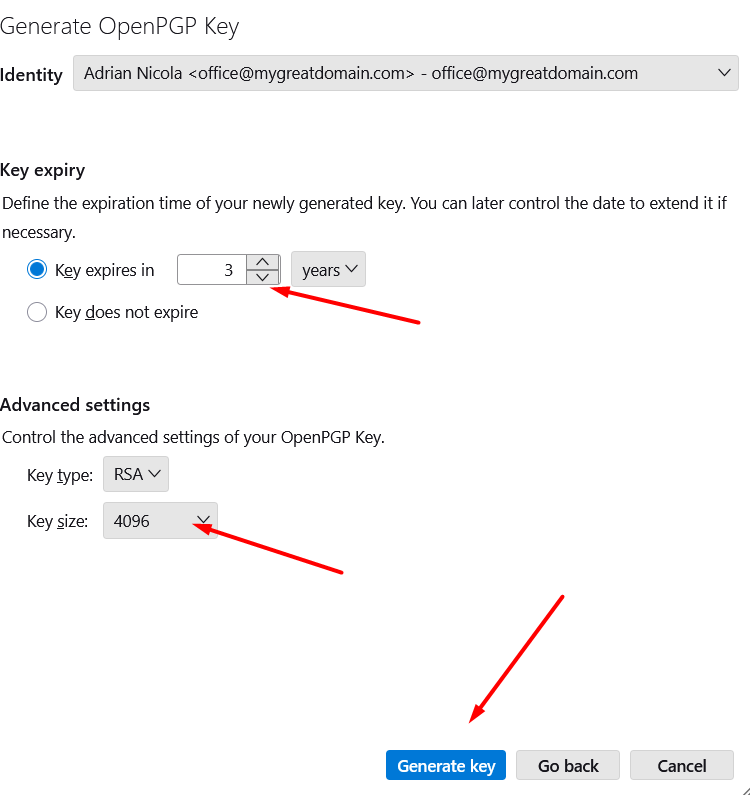
The application will now indicate for which mailbox . identity, the key will be generated, how long it will be valid and what the size of the key should be. We choose 3 years old and size 4096 here. Click the “Generate Key” button to proceed to the final step.
How to generate PGP keys in Mozilla Thunderbird? – 4

A message will appear that the process may take a while. The time it takes to generate the key will depend on your computer. Click the “Confirm” button to complete the process.
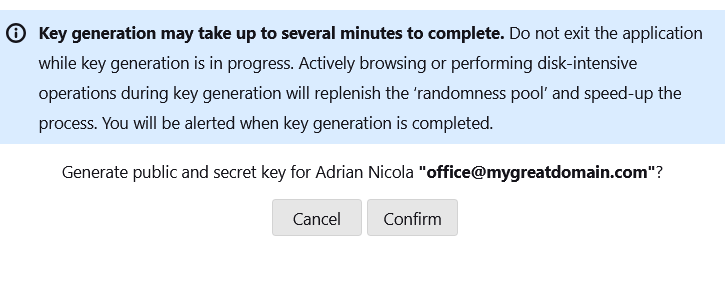
How to generate PGP keys in Mozilla Thunderbird? – 5

The generation of the key has been completed and it has been associated with the indicated mailbox / identity. As you can see in our example, the key is marked so that the mailbox can use it and has an expiration date according to the choice for a period of 3 years from the day it was generated.
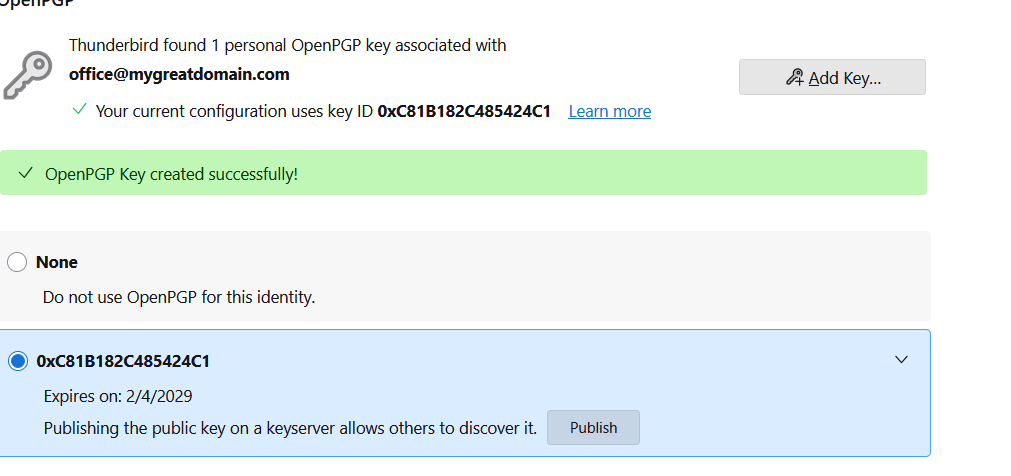
How to generate PGP keys in Mozilla Thunderbird? – 6

Was this article helpful?

Didn't find an answer?

Our support team is here for you 24/7 – write to us and we will help you sort it out.

Helpdesk 24/7 Open a ticket in the mybox panel mybox panel Log in and manage your services

Related articles

All in Email Client Configuration
How-to Email Client Configuration How to Configure mybox Email in the New Outlook for Windows You can connect a mybox email account to the new Microsoft Outlook for Windows using IMAP, allowing you to access messages from… 4 min read How-to Email Client Configuration How to Set Up Custom Domain Email in Thunderbird on Windows To set up email for a custom domain in Thunderbird on Windows, add the mailbox using manual IMAP settings for incoming mail… 4 min read Explainer Email Client Configuration Gmail, Outlook, Apple Mail, or Thunderbird: Which Email Client Is Best for a Custom Domain? The best email client for a custom-domain email address depends on your device, mailbox provider, and supported connection method. The key requirement… 4 min read
mybox

Modular web hosting – free out of the box, modular to grow.

Help sections

  • Getting Started
  • Account & Billing
  • Domains & DNS
  • Hosting & Servers
  • Email
  • Security & SSL
  • WordPress & CMS
  • Grow Online

mybox

  • mybox.com
  • mybox panel
  • Webmail
  • Helpdesk 24/7
© 2026 mybox 1,680 articles