Skip to content
mybox Help Center

Help sections

  • Getting Started
  • Account & Billing
  • Domains & DNS
  • Hosting & Servers
  • Email
  • Security & SSL
  • WordPress & CMS
  • Grow Online
mybox.com All services operational
/

Language

  • English
  • Română
  • mybox panel
  • Webmail
Start free
/
  • Getting Started
  • Account & Billing
  • Domains & DNS
  • Hosting & Servers
  • Email
  • Security & SSL
  • WordPress & CMS
  • Grow Online
  • Help Center
  • mybox.com
  • English
  • Română
All services operational Start free
  1. Help Center
  2. Getting Started
  3. First Email & Domain Setup
How-to Getting Started

iOS Mail Setup (iPhone)

Updated February 9, 2026 1 min read

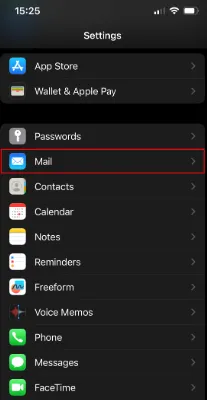
1. Select Settings from the main menu.

2. Select Mail from the Settings list.
iOS Mail Setup (iPhone)

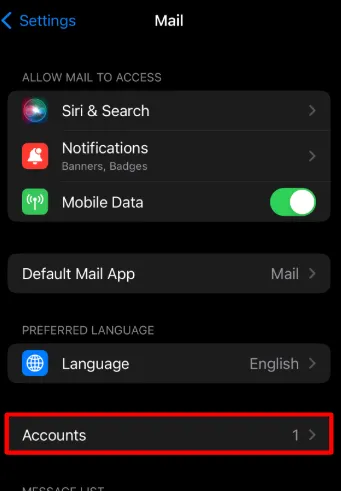
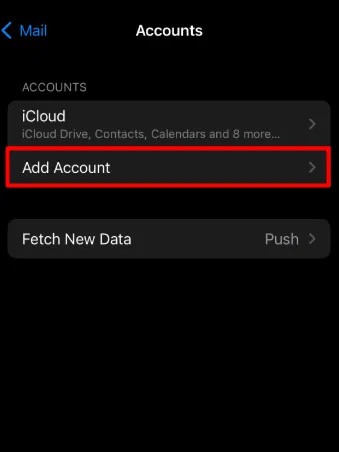
3. Select Accounts -> Add account .

iOS Mail Setup (iPhone) – 2
iOS Mail Setup (iPhone) – 3

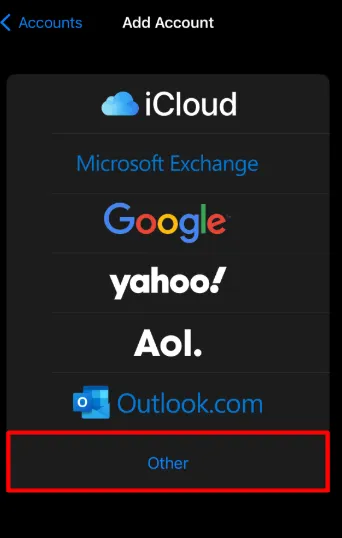
4. We choose others

iOS Mail Setup (iPhone) – 4

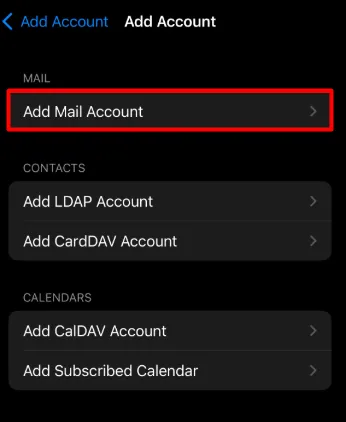
5. Select Add email account from the Others list.
iOS Mail Setup (iPhone) – 5

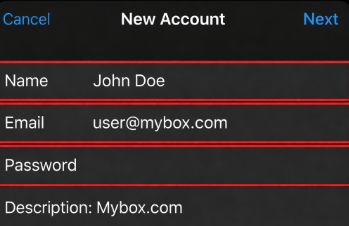
6. Fill in the details for the new account. Then select Next in the upper right corner of the screen.
iOS Mail Setup (iPhone) – 6
  • Name – enter your first and last name
  • Email – enter your email address
  • Password – enter the password for the email address you entered earlier
  • Description – a brief description of our email account

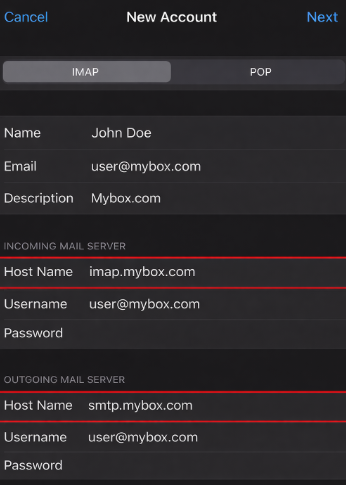
7. Select IMAP. Then select Next in the upper right corner of the screen.

  • Name – enter your first and last name
  • Email – enter your email address
  • Description – a brief description of our email account

Scroll down and enter the settings for our incoming mail server.

  • Hostname – enter imap.mybox.com
  • User – enter your email address
  • Password – enter the password for the email address you entered earlier
iOS Mail Setup (iPhone) – 7

Remark! If the application does not want to establish communication, enter the host name along with the given port, i.e. imap.mybox.com:143

Remark!
If the application does not want to establish communication, enter the host name along with the given port, i.e. imap.mybox.com:143

Scroll down and fill in the fields for the outgoing mail server (SMTP). Then select Next at the top right of the screen.

  • Hostname – enteri smtp.mybox.com
  • User – enter your email address
  • Password – enter the password for the email address you entered earlier

Remark!
Remark! If the application does not want to establish communication, enter the host name along with the given port, i.e. smtp.mybox.com:587

8. Choose what should be included in the email account. To finish, select Keep in the corner at the top right of the screen.

Was this article helpful?

Didn't find an answer?

Our support team is here for you 24/7 – write to us and we will help you sort it out.

Helpdesk 24/7 Open a ticket in the mybox panel mybox panel Log in and manage your services

Related articles

All in First Email & Domain Setup
How-to First Email & Domain Setup How to add a new mailbox Email accounts in mybox are tied to a domain in your account. You can create a mailbox on your own domain or… 1 min read How-to First Email & Domain Setup Configuring Thunderbird 1. When you want to add another email account to Mozilla Thunderbird, click on any account, then a tab will appear where… 2 min read How-to First Email & Domain Setup How to configure the email client An email client is an application used to send and receive email — such as Outlook, Thunderbird, or Apple Mail. To connect… 1 min read
mybox

Modular web hosting – free out of the box, modular to grow.

Help sections

  • Getting Started
  • Account & Billing
  • Domains & DNS
  • Hosting & Servers
  • Email
  • Security & SSL
  • WordPress & CMS
  • Grow Online

mybox

  • mybox.com
  • mybox panel
  • Webmail
  • Helpdesk 24/7
© 2026 mybox 1,680 articles