
Restoring a MySQL database from backup
On this page
mybox creates automatic daily backups of all databases on your account. If you need to roll back a database to an earlier state — for example after a failed update, a plugin conflict, or accidental data loss — you can restore it directly from the mybox panel.
→How to create a manual MySQL backup
How many backups are available?
| Plan | Backup retention |
| One Box | 1 day (1 restore point) |
| Flex Box | 7 days |
| Prime Box | 7 days |
Steps
___TP_PROTECTED_BLOCK_0___
1. Log in to the mybox panel and go to Databases → MySQL Databases.
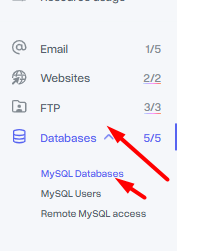
2. Click on the database you want to restore, then select Backups. A list of available restore points for that database will appear.
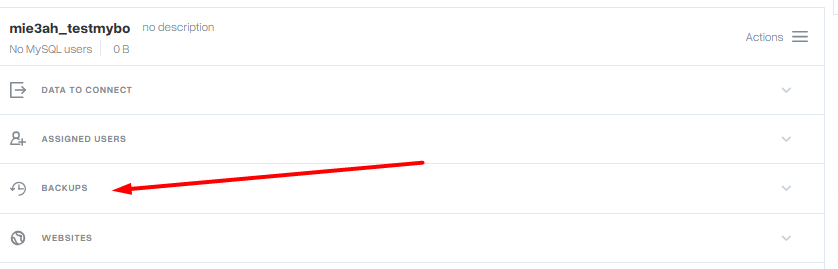

3. Click Restore next to the backup you want to use. To see the exact date and time of a backup, hover over the time indicator (e.g. “2 days ago”).
4. A confirmation window will appear showing the exact backup timestamp. Select the target database — this is the database that will be overwritten — and click Restore to confirm.
5. A confirmation notification will appear in the upper right corner of the panel. The restore process runs in the background.
6. Once the operation is complete, the notification will update to confirm the restore is finished.
Didn't find an answer?
Our support team is here for you 24/7 – write to us and we will help you sort it out.