
Whitelist or blacklist domains and email addresses
If you want to block messages from a specific sender — or ensure that emails from a trusted address are never filtered as spam — you can manage this directly from the mybox panel using Global Lists.
Setting up a rule
1. Log in to the mybox panel and go to Email.
2. Click the Global Lists (black/white) button on the right.
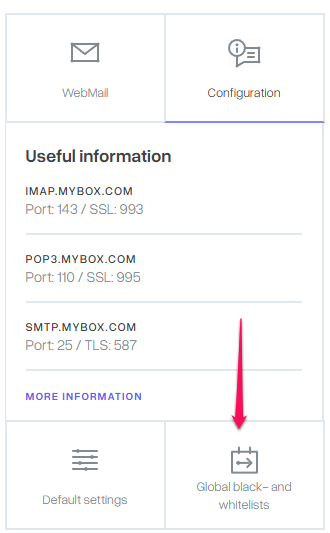
3. The page shows any existing rules and an + Add button to create new ones.
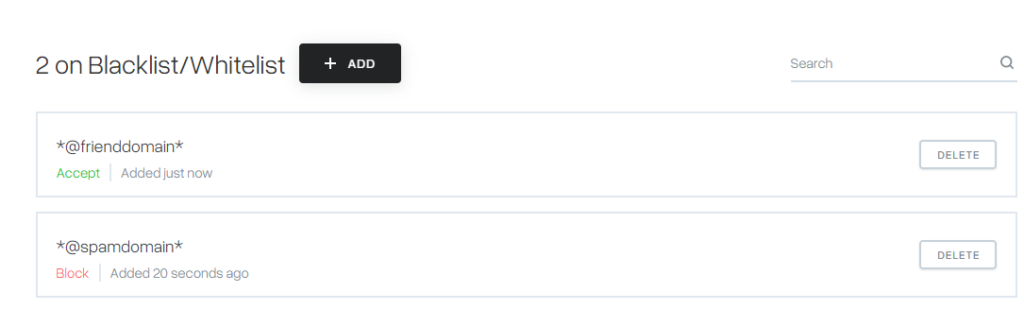
4. Enter the address you want to block or allow:
- ian@example.com — applies the rule to a specific sender
- *@example.com — applies the rule to all senders from that domain
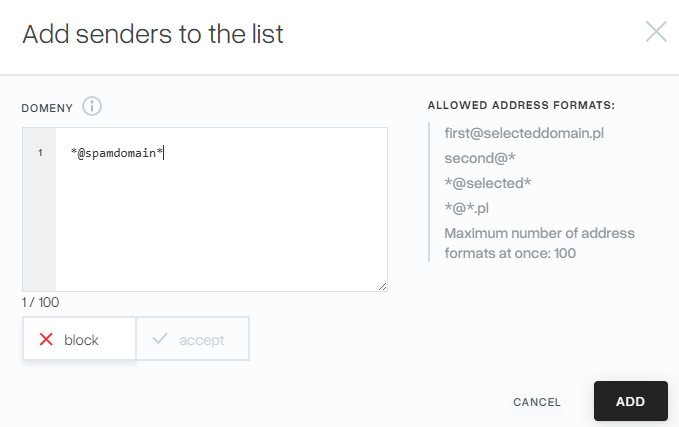
4. Click + Add to confirm. The rule becomes active within 5 minutes.
Can individual mailbox users manage their own rules?
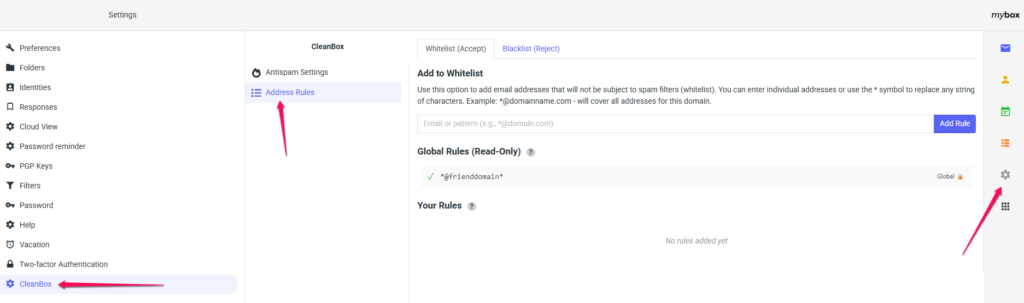
Yes. Users can manage their own address rules by logging into WebMail at mail.mybox.com. Go to Settings → CleanBox → Address Rules and add rules to specify which senders to receive, block, or send to the Spam folder.
Didn't find an answer?
Our support team is here for you 24/7 – write to us and we will help you sort it out.