
Skip to content
mybox Help Center

Help sections

  • Getting Started
  • Account & Billing
  • Domains & DNS
  • Hosting & Servers
  • Email
  • Security & SSL
  • WordPress & CMS
  • Grow Online
mybox.com All services operational
/

Language

  • English
  • Română
  • mybox panel
  • Webmail
Start free
/
  • Getting Started
  • Account & Billing
  • Domains & DNS
  • Hosting & Servers
  • Email
  • Security & SSL
  • WordPress & CMS
  • Grow Online
  • Help Center
  • mybox.com
  • English
  • Română
All services operational Start free
  1. Help Center
  2. Security & SSL
  3. Account & Password Security
How-to Security & SSL

Changing the password to the PrestaShop backend using the traditional method and via the database

Updated June 8, 2026 2 min read
On this page
  1. Basic method
  2. Method by modifying the database
  3. Step 1 – Obtaining a token
  4. Step 2 – modifying the database
  5. Step 3 – Change your password

If you have lost the password for your PrestaShop store panel, you can recover it in two ways.

Basic method

If you have access to the email address associated with your store user account, simply select the password reminder/reset option in the store back office login form.
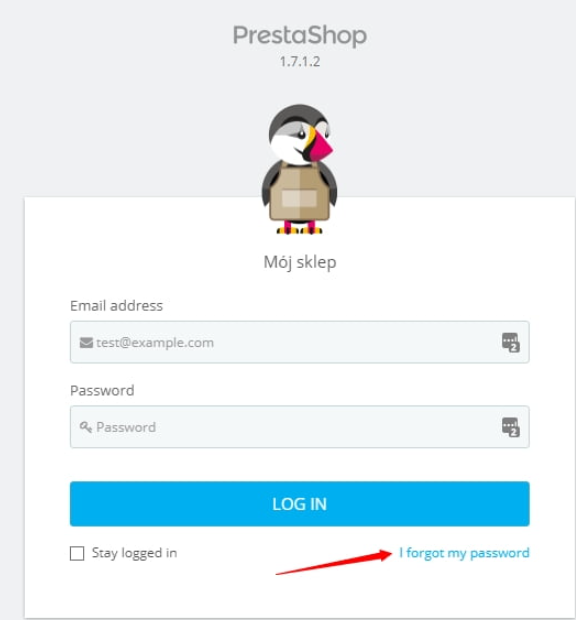
Changing the password to the PrestaShop backend using the traditional method and via the database

Then, in the form field that appears, enter your email address:
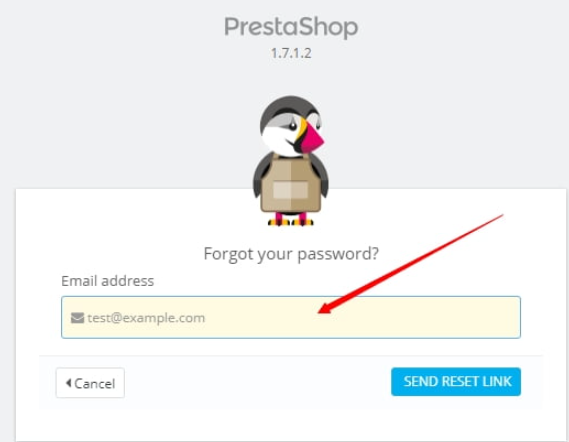
Changing the password to the PrestaShop backend using the traditional method and via the database – 2

Method by modifying the database

If you are unable to recover your password using the basic method, for example because you do not have access to the email address associated with the store administrator account, you can make a change by modifying the database.

Step 1 – Obtaining a token

Prestashop 1.6.x
Log in to your account via FTP and open the file:
/config/settings.inc.php for viewing

Prestashop 1.7.x
Log in to your account via FTP and open the file:
/app/config/parameters.php for viewing

where to get the value of the cookie_key variable :
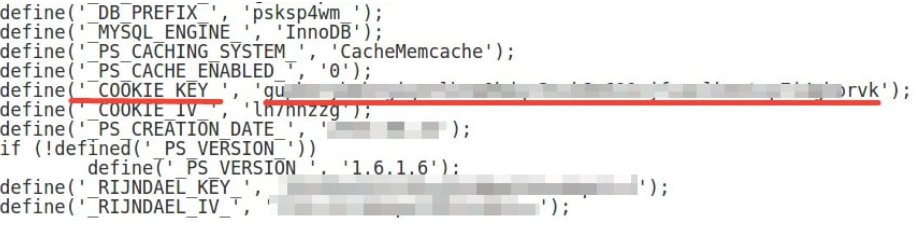
Changing the password to the PrestaShop backend using the traditional method and via the database – 3

Note:
If you installed the script automatically from the mybox panel, these files also contain the login and password for the database your store uses. You’ll need this information in step two.
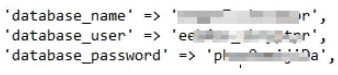
Changing the password to the PrestaShop backend using the traditional method and via the database – 4

Step 2 – modifying the database

1. After logging in to the mybox panel, go to the Databases section.
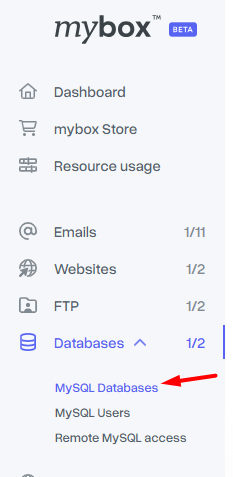
Changing the password to the PrestaShop backend using the traditional method and via the database – 5

2. Then, when you see the page with the list of databases you have, in the upper right corner you will find a link to the phpMyAdmin panel.
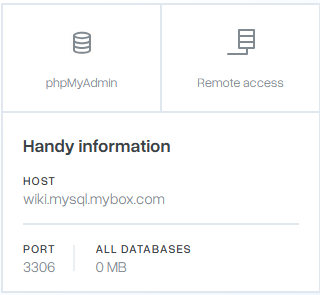
Changing the password to the PrestaShop backend using the traditional method and via the database – 6

3. A login form will open in a separate browser. Use the database data you specified when creating it or downloaded from the configuration file in step one.

4. Expand the list of tables and look for the one named ps_employee
(note, if you have a different prefix, look for _employee in the table name).

Changing the password to the PrestaShop backend using the traditional method and via the database – 7

5. Clicking the table name will display its contents, specifically users such as administrators and employees. Find the user whose password you want to modify in the list and click Edit.

Changing the password to the PrestaShop backend using the traditional method and via the database – 8

Step 3 – Change your password

6. At this stage, a form for editing user data will be displayed. The field you’re interested in is: passwd

Changing the password to the PrestaShop backend using the traditional method and via the database – 9

7. From the left, expand the list and select MD5 – this is a form of password encryption. Then, in the last field containing a string, delete it and paste the cookie_key value retrieved in step one. Without any additional spaces, enter the new password you want to set for this user. Then, click the Execute button on the right, below the form fields.

Your password has been changed and you can log in to your store’s back office using your new credentials.

Was this article helpful?

Didn't find an answer?

Our support team is here for you 24/7 – write to us and we will help you sort it out.

Helpdesk 24/7 Open a ticket in the mybox panel mybox panel Log in and manage your services

On this page

  1. Basic method
  2. Method by modifying the database
  3. Step 1 – Obtaining a token
  4. Step 2 – modifying the database
  5. Step 3 – Change your password

Related articles

All in Account & Password Security
How-to Account & Password Security FTP client – How to take care of security? When using FTP clients to manage your website files, it is important to follow security best practices to protect your hosting account… 2 min read How-to Account & Login Management How do I set up 2FA in the mybox panel? Two-factor authentication (2FA) adds a second verification step when logging in to the mybox panel. After entering your password, the panel asks… 1 min read How-to WebMail mail.mybox.com How do I set up two-step verification in Webmail? Security is a priority today, and two-step verification, which requires not only knowing and providing a password, but also a one-time code,… 2 min read
mybox

Modular web hosting – free out of the box, modular to grow.

Help sections

  • Getting Started
  • Account & Billing
  • Domains & DNS
  • Hosting & Servers
  • Email
  • Security & SSL
  • WordPress & CMS
  • Grow Online

mybox

  • mybox.com
  • mybox panel
  • Webmail
  • Helpdesk 24/7
© 2026 mybox 1,680 articles