
Skip to content
mybox Help Center

Help sections

  • Getting Started
  • Account & Billing
  • Domains & DNS
  • Hosting & Servers
  • Email
  • Security & SSL
  • WordPress & CMS
  • Grow Online
mybox.com All services operational
/

Language

  • English
  • Română
  • mybox panel
  • Webmail
Start free
/
  • Getting Started
  • Account & Billing
  • Domains & DNS
  • Hosting & Servers
  • Email
  • Security & SSL
  • WordPress & CMS
  • Grow Online
  • Help Center
  • mybox.com
  • English
  • Română
All services operational Start free
  1. Help Center
  2. Security & SSL
  3. Account & Password Security
How-to Security & SSL

How do I change my WordPress password through the database?

Updated June 2, 2026 2 min read
On this page
  1. Steps to change the password via database
  2. Summary

By default, WordPress allows password reset through the login page using the “Forgot password” option. A reset link is sent to the email address associated with the user account.

If you do not have access to the mailbox, you can reset the password directly in the database using phpMyAdmin.

Steps to change the password via database

1. Log in to the myBox panel, select the “Databases” section from the menu on the left, and click the “phpMyAdmin” button on the page that appears.
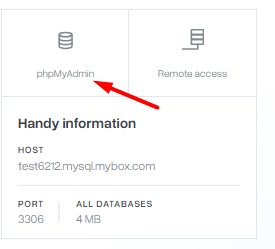
How do I change my WordPress password through the database?

2. After logging in to the database, select the wp_users table in the column on the left.
Keep in mind that sometimes the so-called prefix can be different, so look for a table called string-character_users

If you do not know the login and password to the database related to the “WordPress” script, read the guide located – HERE
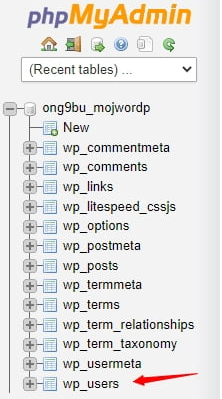
How do I change my WordPress password through the database? – 2

3. After loading the table contents, you will receive a list of users who have created accounts within your website. Find the user you want to change the password for and click on the “edit” or “edit” button (in English)

How do I change my WordPress password through the database? – 3

4. Then search for the field named “user_pass”, select the “MD5” method from the drop-down list and enter the password you want to set for the edited user in the value field where the string is located, e.g. my-new-password-123. Once you have performed the action, your new password will be encrypted and will be presented as a barely legible string.

Remember or save in a safe place the new password you set in this step.
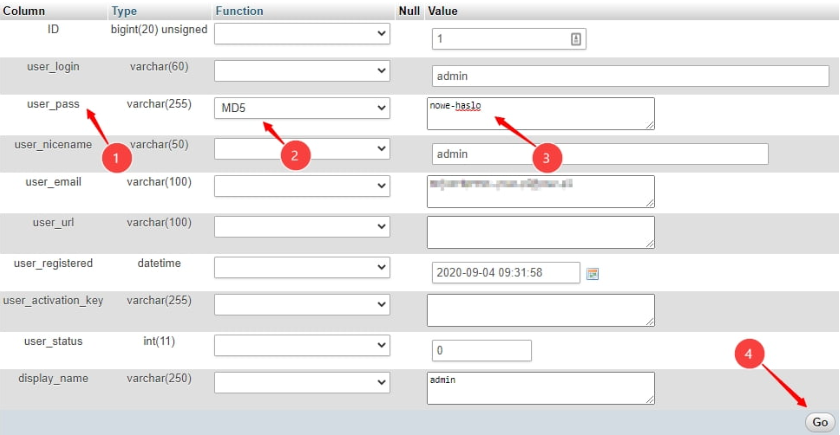
How do I change my WordPress password through the database? – 4

5. The last step is to confirm the change with the “execute” or “go” button (in English)

Now you can log in to your WordPress dashboard using your new password.

Note!
Make sure to store the new password securely, as it will not be shown again in plain text after saving.

Summary

If email-based password recovery is not available, you can reset a WordPress password directly in the database via phpMyAdmin by editing the user_pass field in the wp_users table and saving a new MD5-hashed value.

Was this article helpful?

Didn't find an answer?

Our support team is here for you 24/7 – write to us and we will help you sort it out.

Helpdesk 24/7 Open a ticket in the mybox panel mybox panel Log in and manage your services

On this page

  1. Steps to change the password via database
  2. Summary

Related articles

All in Account & Password Security
How-to Account & Password Security FTP client – How to take care of security? When using FTP clients to manage your website files, it is important to follow security best practices to protect your hosting account… 2 min read How-to Account & Login Management How do I set up 2FA in the mybox panel? Two-factor authentication (2FA) adds a second verification step when logging in to the mybox panel. After entering your password, the panel asks… 1 min read How-to WebMail mail.mybox.com How do I set up two-step verification in Webmail? Security is a priority today, and two-step verification, which requires not only knowing and providing a password, but also a one-time code,… 2 min read
mybox

Modular web hosting – free out of the box, modular to grow.

Help sections

  • Getting Started
  • Account & Billing
  • Domains & DNS
  • Hosting & Servers
  • Email
  • Security & SSL
  • WordPress & CMS
  • Grow Online

mybox

  • mybox.com
  • mybox panel
  • Webmail
  • Helpdesk 24/7
© 2026 mybox 1,680 articles