
Skip to content
mybox Help Center

Help sections

  • Getting Started
  • Account & Billing
  • Domains & DNS
  • Hosting & Servers
  • Email
  • Security & SSL
  • WordPress & CMS
  • Grow Online
mybox.com All services operational
/

Language

  • English
  • Română
  • mybox panel
  • Webmail
Start free
/
  • Getting Started
  • Account & Billing
  • Domains & DNS
  • Hosting & Servers
  • Email
  • Security & SSL
  • WordPress & CMS
  • Grow Online
  • Help Center
  • mybox.com
  • English
  • Română
All services operational Start free
  1. Help Center
  2. Account & Billing
  3. Service & Resource Management
How-to Account & Billing

How I can restore the files of my website?

Updated February 9, 2026 2 min read
On this page
  1. How do I overwrite files from a restored backup?
  2. 1. Method using the WinSCP FTP client
  3. 2. Method using the FTP FileZilla

To order the restoration of your website files, log in to the myBox panel, then go to the Websites section in the menu on the left, and then click on the frame of the page for which you want to restore files.

How I can restore the files of my website?

On the page that opens, select Backups on the left, and then click Restore next to the selected point

How I can restore the files of my website? – 2

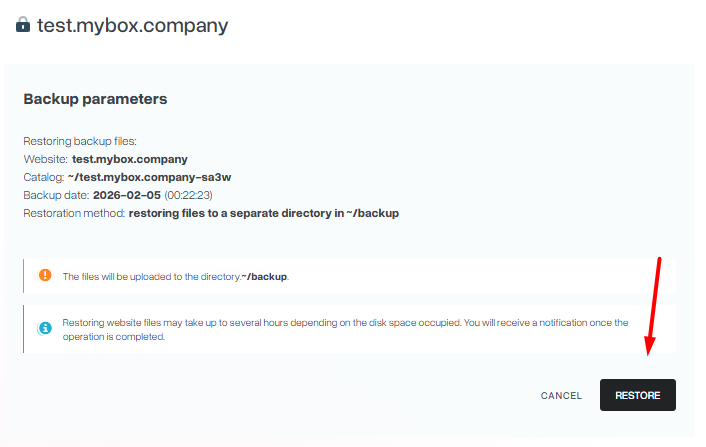
The last step is to confirm by clicking the Restore button again.
Remember
The restored files will be in the ~/backup directory, so the original files or page directories will not be overwritten automatically.
How I can restore the files of my website? – 3

Remark
Depending on the size of the website and the number of files, the restoration time can take from several minutes to even several hours for very large websites.

How do I overwrite files from a restored backup?

1. Method using the WinSCP FTP client

As a first step, establish communication with your FTP account using the WinSCP application. If you don’t know how to do this, you can find instructions on how to configure the connection HERE.

Then, in the root directory /root, navigate to the /backup directory
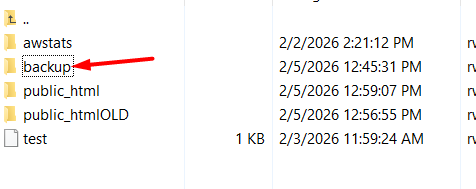
How I can restore the files of my website? – 4

There you need to go to the directory from the last ordered restore. These directories also contain information in the name from which date their content was restored.
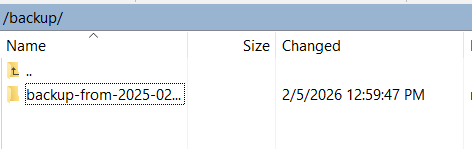
How I can restore the files of my website? – 5

Inside you will find, the /public_html directory. Right-click on it and select the Duplicate from the menu that appears.
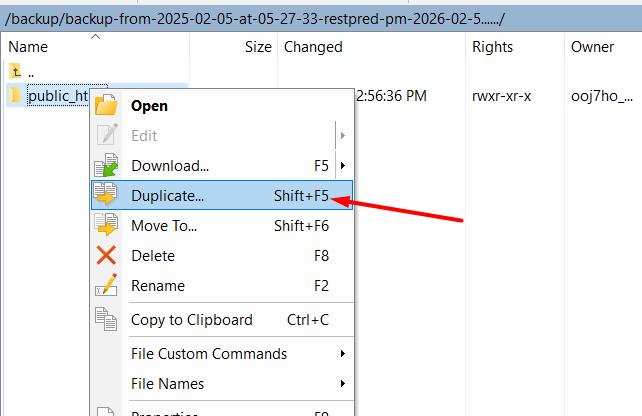
How I can restore the files of my website? – 6

In the Copy pane, leave the session field unchanged, do not select copy using the local session, and in the Remote Destination Path field, type /yourdomain.com/public_html (this is the default form of the path – if you created the page in a different structure, you should indicate the individual values there) and click OK to confirm.
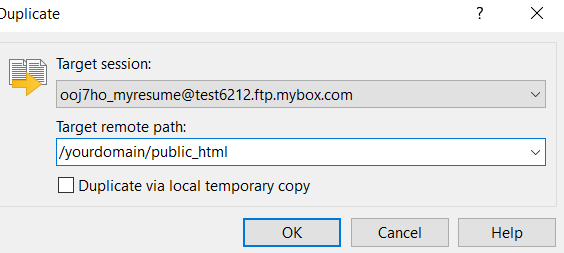
How I can restore the files of my website? – 7

That’s all. Files and page directories should be overwritten with those from the restored copy.

2. Method using the FTP FileZilla

In the first step, establish communication with your FTP account using the FileZilla application. If you don’t know how to do this, you can find instructions on how to configure the connection HERE.

Go to the root directory and rename public_html to public_htmlOLD by right clicking on it.
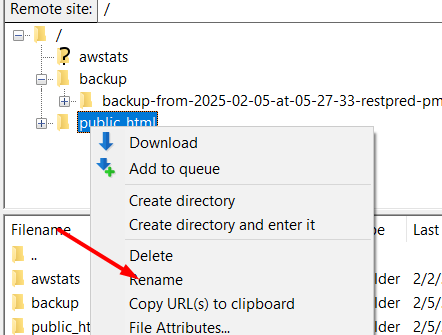
How I can restore the files of my website? – 8

Then, in the root directory /root, navigate to the /backup directory
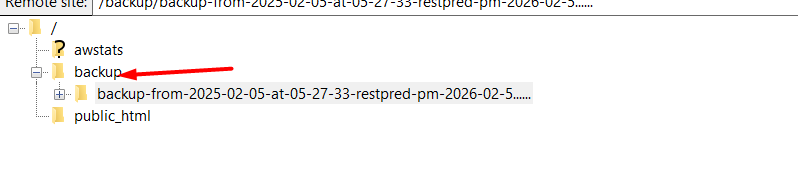
How I can restore the files of my website? – 9

There you need to go to the directory from the last ordered restore. These directories also contain information in the name from which date their content was restored.
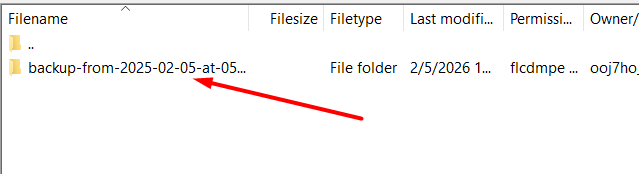
How I can restore the files of my website? – 10

Inside you will find the /public_html directory. Click on it and drag it to your root folder.
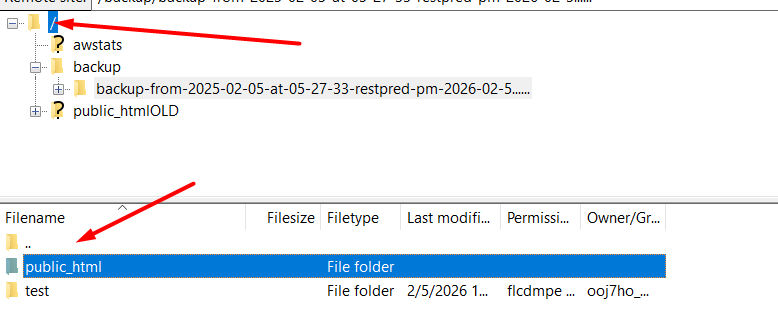
How I can restore the files of my website? – 11

Your backup public_html should now appear in the root folder if you refresh it now.
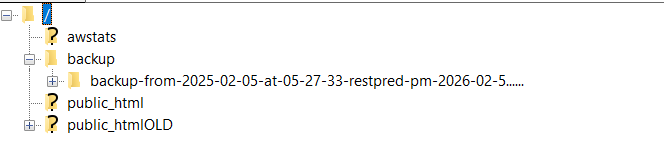
How I can restore the files of my website? – 12

That’s all. Files and page directories should be overwritten with those from the restored copy.

Was this article helpful?

Didn't find an answer?

Our support team is here for you 24/7 – write to us and we will help you sort it out.

Helpdesk 24/7 Open a ticket in the mybox panel mybox panel Log in and manage your services

On this page

  1. How do I overwrite files from a restored backup?
  2. 1. Method using the WinSCP FTP client
  3. 2. Method using the FTP FileZilla

Related articles

All in Service & Resource Management
How-to Getting Started with mybox How to order a website to be transferred from another hosting At mybox, we provide comprehensive assistance with the transfer of websites and mailboxes from your current hosting provider. This migration process is… 2 min read How-to Getting Started with mybox Ordering a website and email migration to mybox The mybox team can migrate your website and email from your current hosting provider. To request a migration, you need to activate… 1 min read How-to Getting Started with mybox How to migrate a website to mybox Migrating a website to mybox means copying your files, database, and email content from your current hosting provider and pointing your domain… 2 min read
mybox

Modular web hosting – free out of the box, modular to grow.

Help sections

  • Getting Started
  • Account & Billing
  • Domains & DNS
  • Hosting & Servers
  • Email
  • Security & SSL
  • WordPress & CMS
  • Grow Online

mybox

  • mybox.com
  • mybox panel
  • Webmail
  • Helpdesk 24/7
© 2026 mybox 1,680 articles