
How to restore/upload a database from a .sql or .sql.gz file via phpMyAdmin?
On this page
If you have a database backup in .sql or .sql.gz format, you can import it using phpMyAdmin.
Before you begin, make sure you have:
- Created a MySQL database
- Created a database user
- Assigned the user to the database with the appropriate permissions
If you have not completed these steps yet, create the database and user first. HERE you can find a guide on how to do it.
In the myBox panel, in the “Databases” section at: https://panel.mybox.com/databases/v/mysql-database-list/ you will find the button: “phpMyAdmin”.
Click on it. This will open a page in a new tab of your web browser with a login form directly to your database.
What’s next?
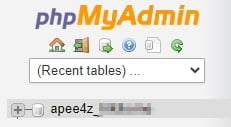
1. After logging in, select the name of your database from the left side of the screen and enter it.
2. At the top of the page, you will find the “Import” button.

3. After clicking on the “Import” button, a page with a form will appear, where you can indicate the .sql or .sql.gz file from the disk that you want to stay.
imported, and then in the vast majority of cases, without making changes to the other options, order the import by clicking the “Go” / “Import” button
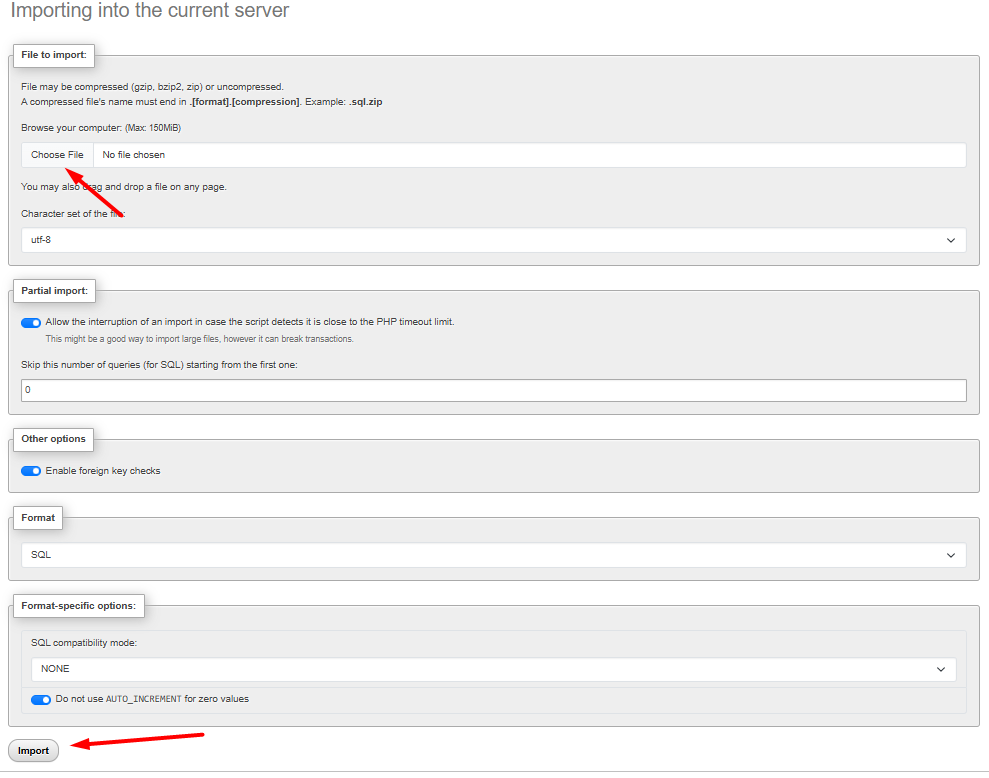
Once the import is done correctly, after a while you should receive a message at the top of the page on a green background telling you how many queries have been executed.

Summary
phpMyAdmin allows you to import .sql and .sql.gz database backups directly through a web browser. After selecting the target database and uploading the backup file, phpMyAdmin executes the SQL statements and restores the database contents. The maximum import file size through phpMyAdmin is 32 MB.
Didn't find an answer?
Our support team is here for you 24/7 – write to us and we will help you sort it out.